1 · Sign up phone
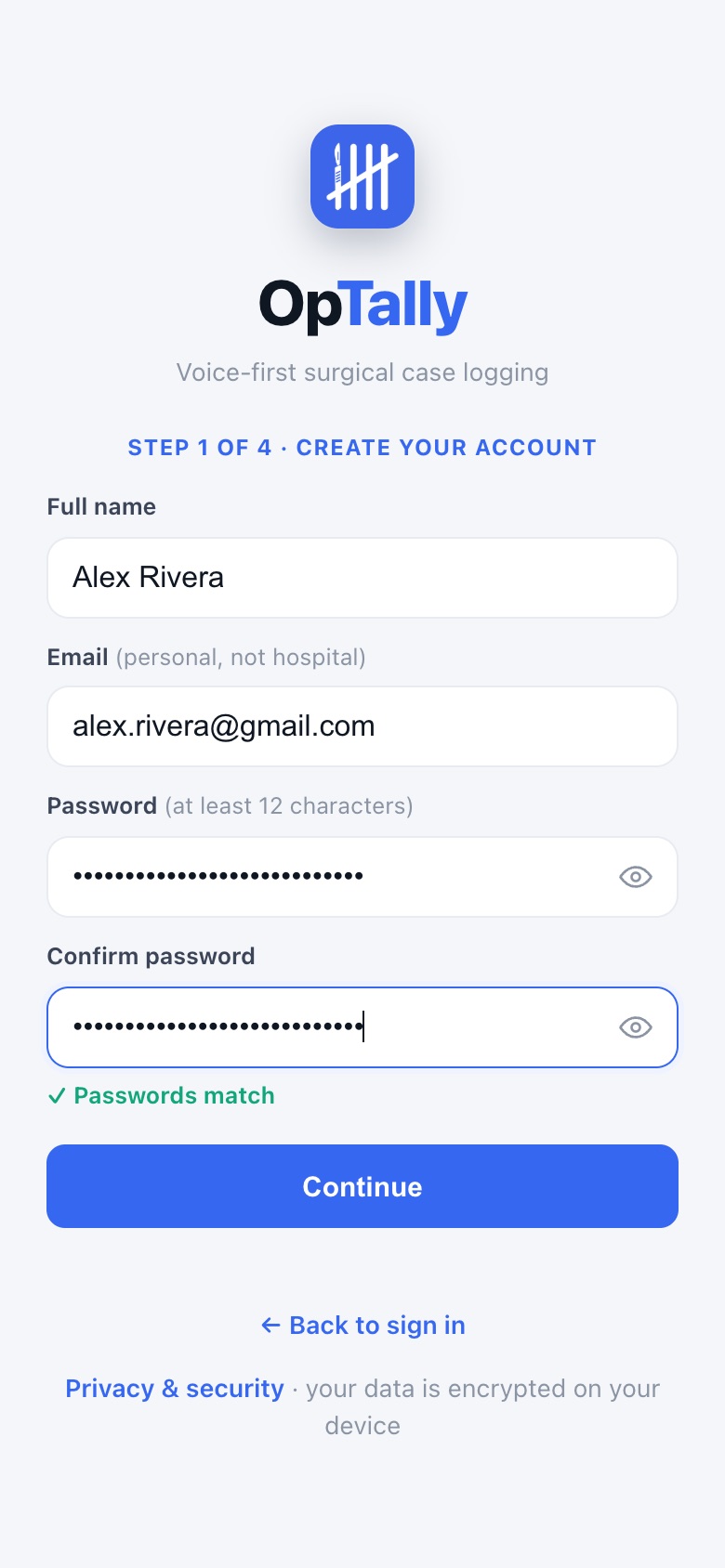
Go to optally.io in Safari (iPhone) or Chrome (Android) and tap Create an account. Four short steps.
1Your details
Use a personal email, not a hospital one, so you keep access after residency. Type your password twice.
Let your phone suggest a strong password and save it. Your cases are encrypted with it, so pick one you will not lose.
2Your responsibilities
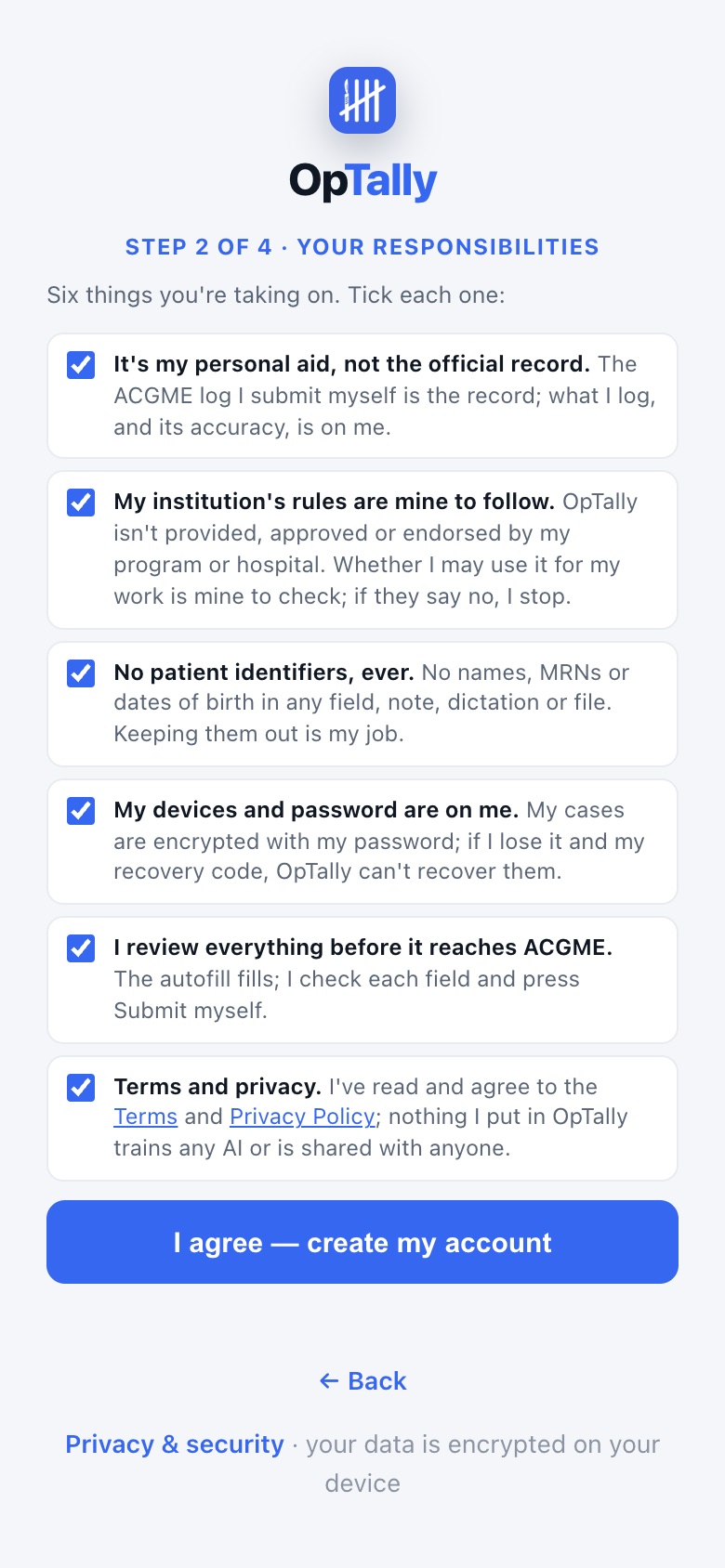
Six short statements. Tick each one. The last opens the Terms and Privacy page in a new tab if you want to read it.
3Recovery code
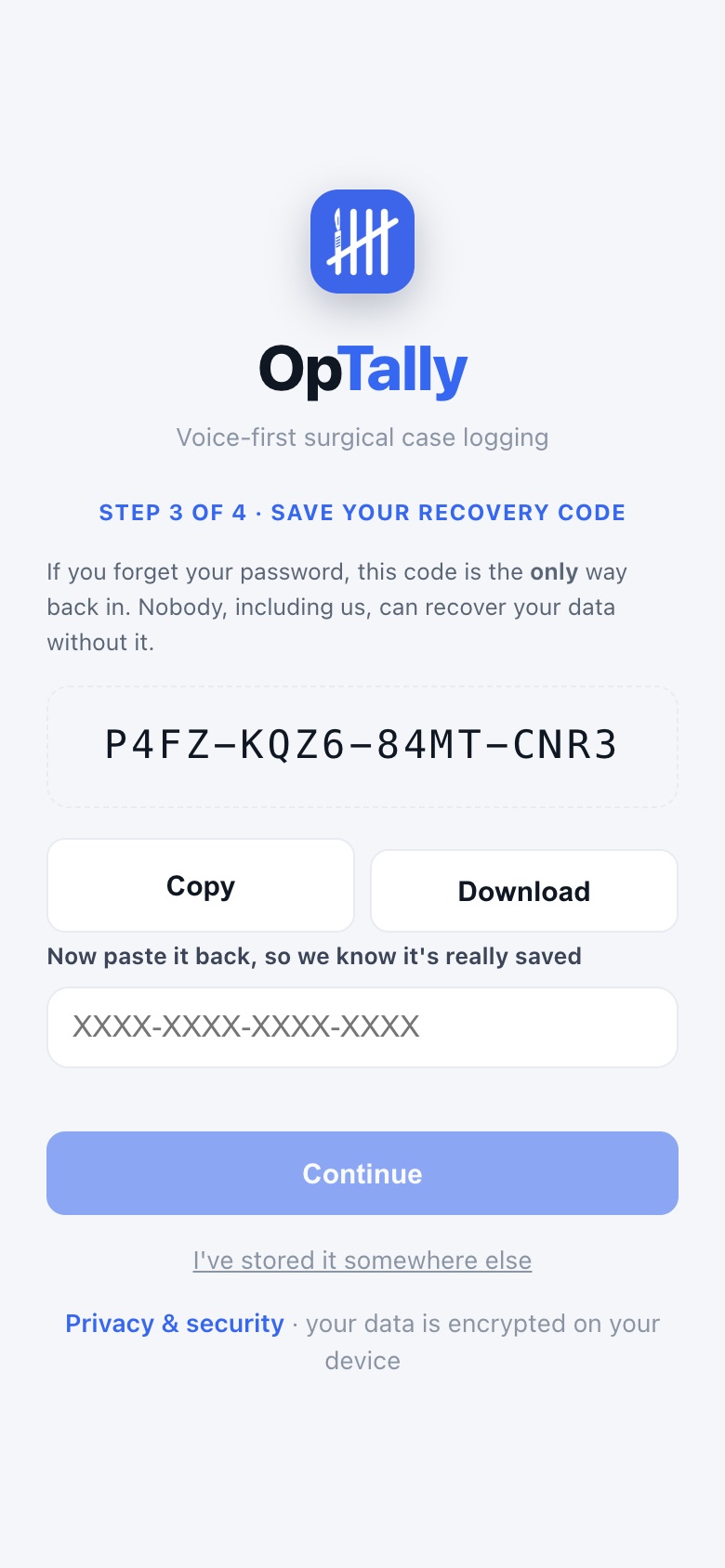
This is the only way back in if you forget your password. Nobody, including OpTally, can reset it for you.
- Tap Copy and paste it into your password manager or Notes, or tap Download to save it as a file.
- Paste it back into the box to continue.
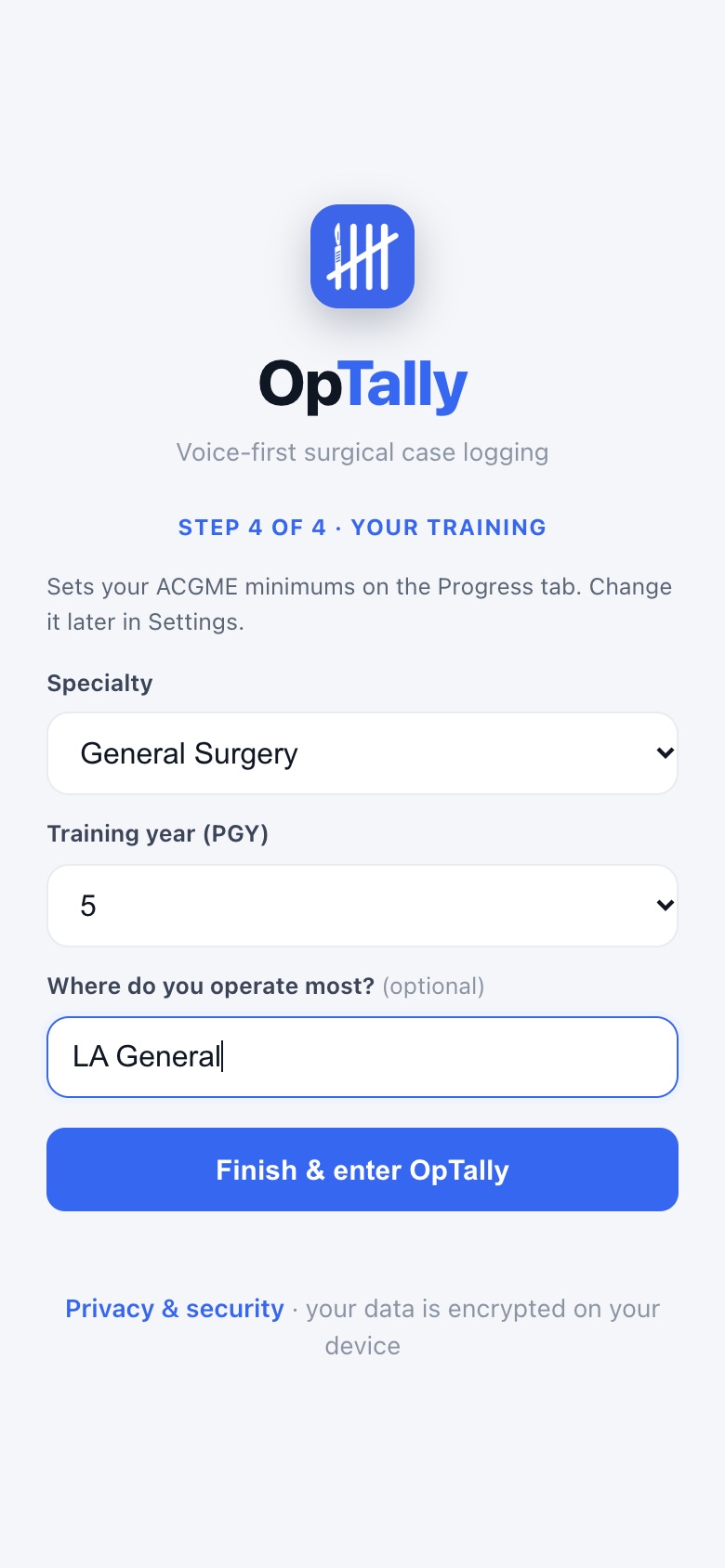
4Your training
Specialty and PGY set your minimums on the Progress tab. Where you operate most becomes the default site on new cases. All of it can be changed later in Settings.
5The walkthrough
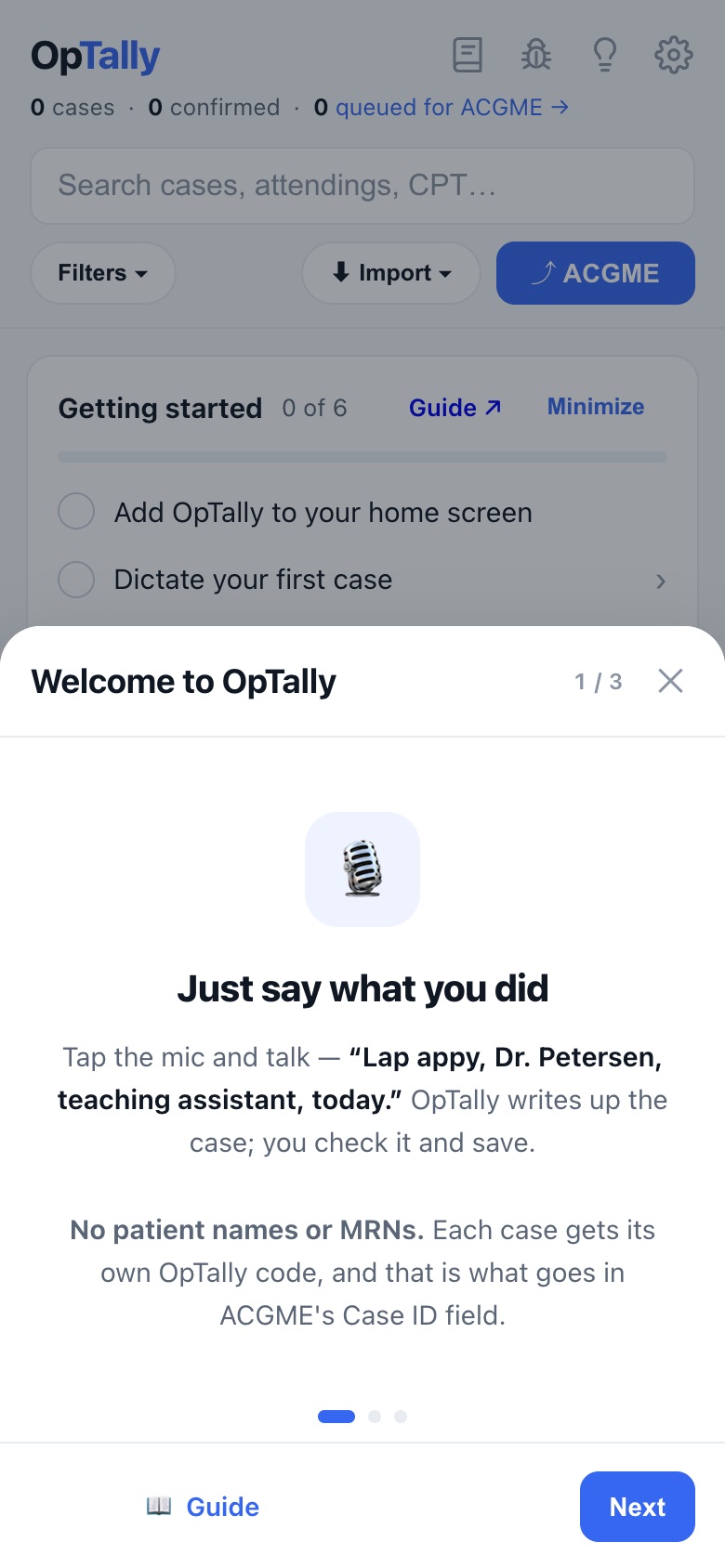
A short tour shows on your first sign-in. Swipe through it or skip. You can reopen it any time from the lightbulb in the top bar.
2 · Put it on your home screen phone
OpTally is a web app. Adding it to the home screen makes it open full-screen like a normal app, and keeps the mic permission.
iPhone, in Safari or Chrome
- Open optally.io.
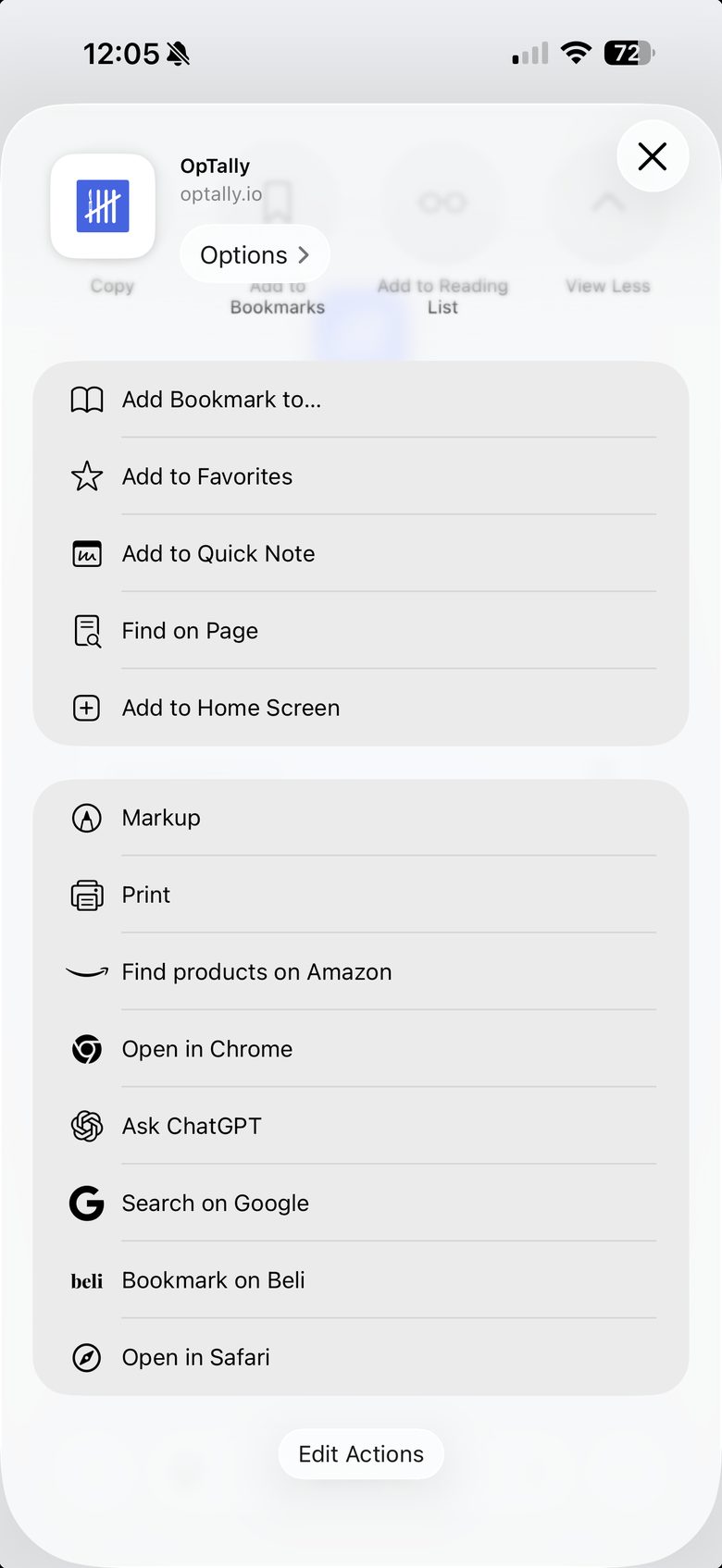
- Tap Share, the square with the arrow. In Safari it is at the bottom; in Chrome it is in the ⋯ menu.
- Scroll the list and tap Add to Home Screen, then Add.
Then tap Add
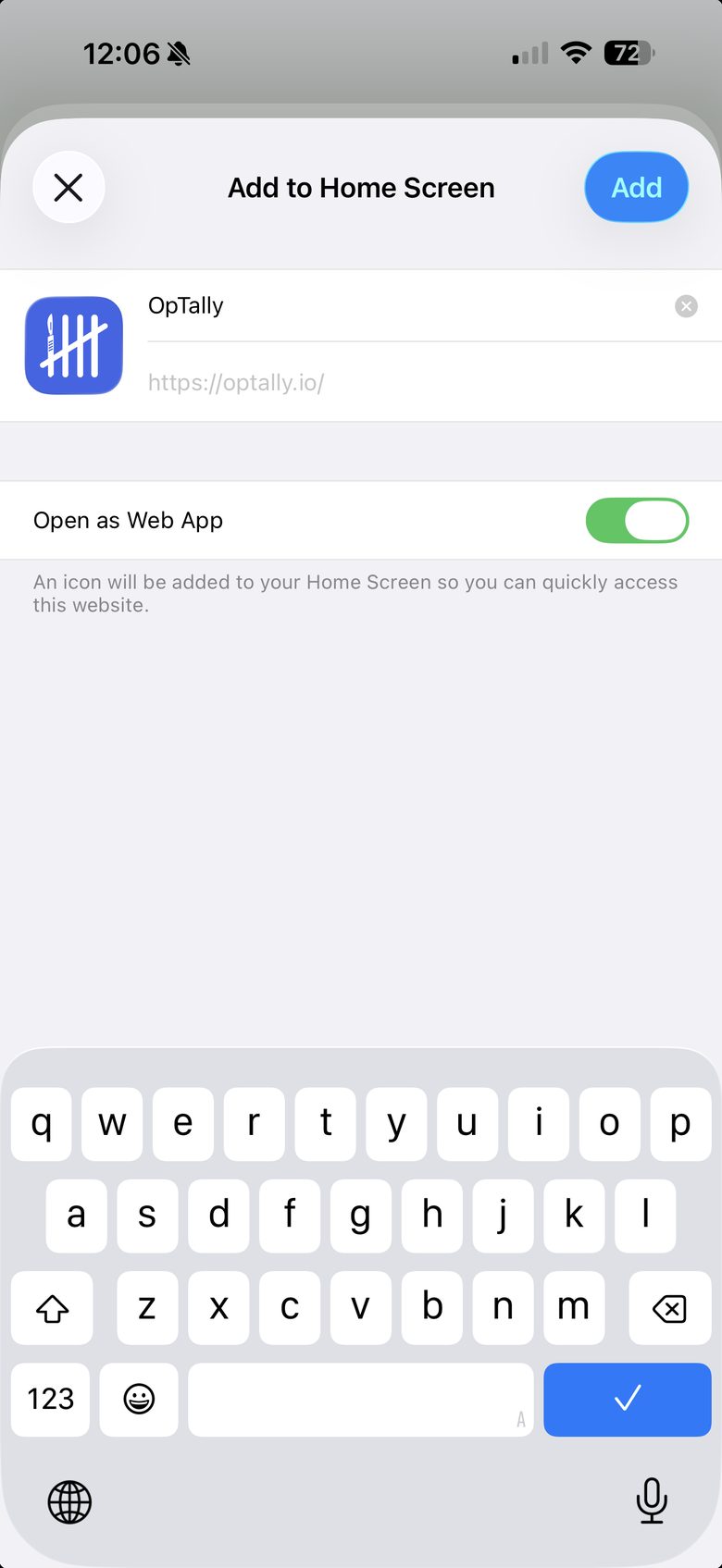
Leave Open as Web App on. From then on, open OpTally from the icon, not the browser.
Android
- Open optally.io in Chrome.
- Tap the ⋮ menu, then Add to Home screen (or Install app).
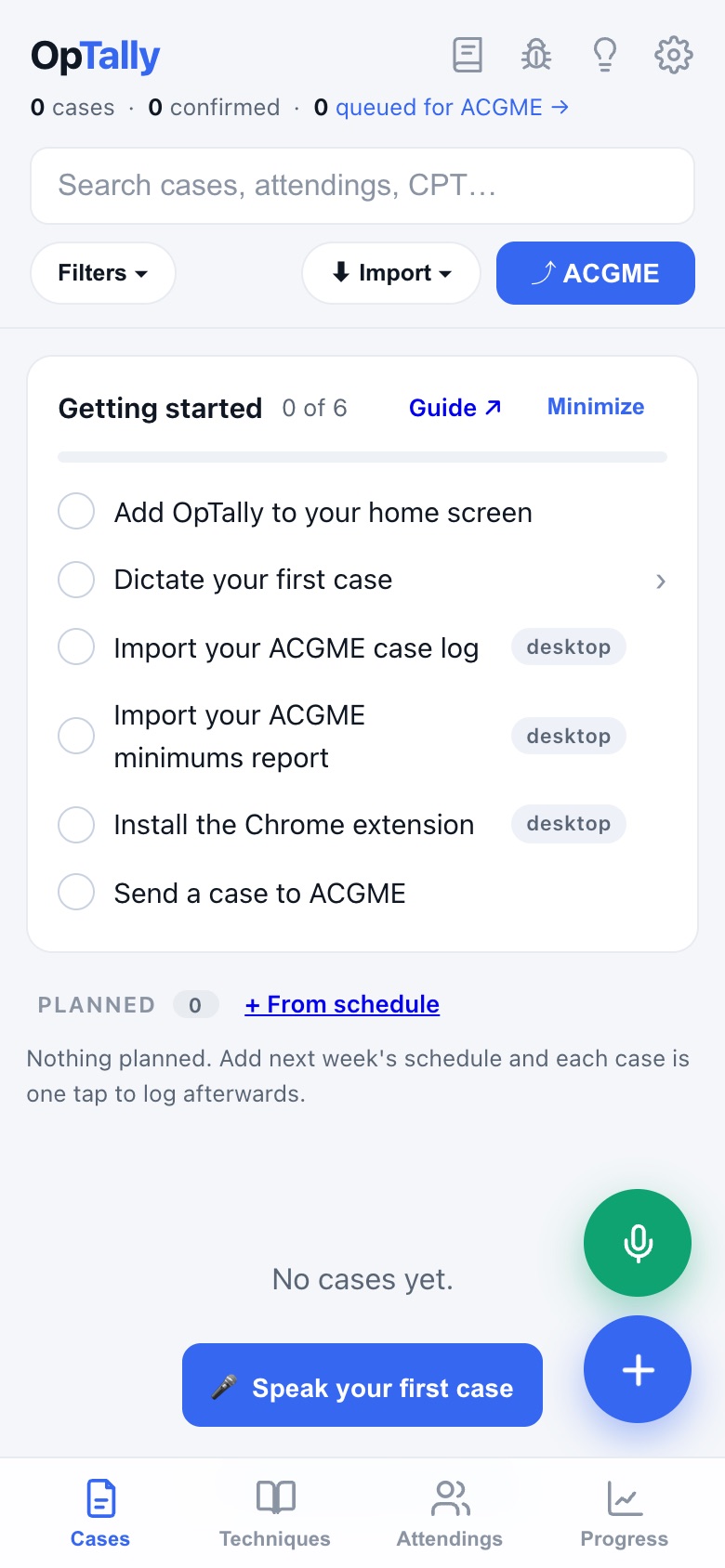
Home, with the checklist
The Getting started card on the home tab ticks itself off as you go, and its Guide link brings you back here.
3 · Log a case by voice phone
Walking out of the OR, tap the mic and talk. Around 20 seconds of speaking, and the case is logged.
1Tap the green mic and say what you did
Attending, your role, the operation, and anything worth remembering. In any order, as you would tell a co-resident. No patient names or MRNs: OpTally never collects them, and each case gets its own OpTally code for ACGME's Case ID field.
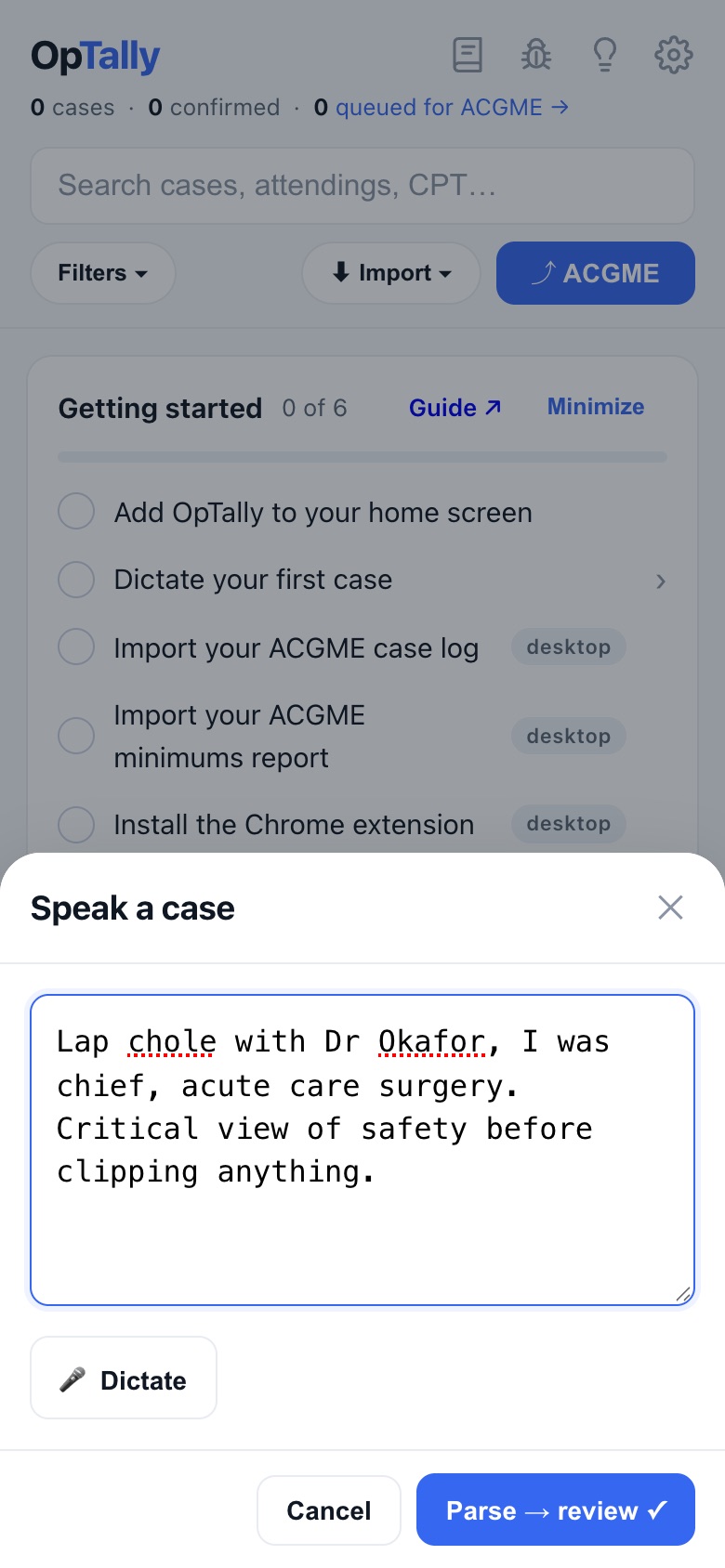
"Lap chole with Dr Okafor, I was chief, acute care surgery. Critical view before clipping anything."
The words appear as you speak. Tap Parse → review when you are done.
2Check the review
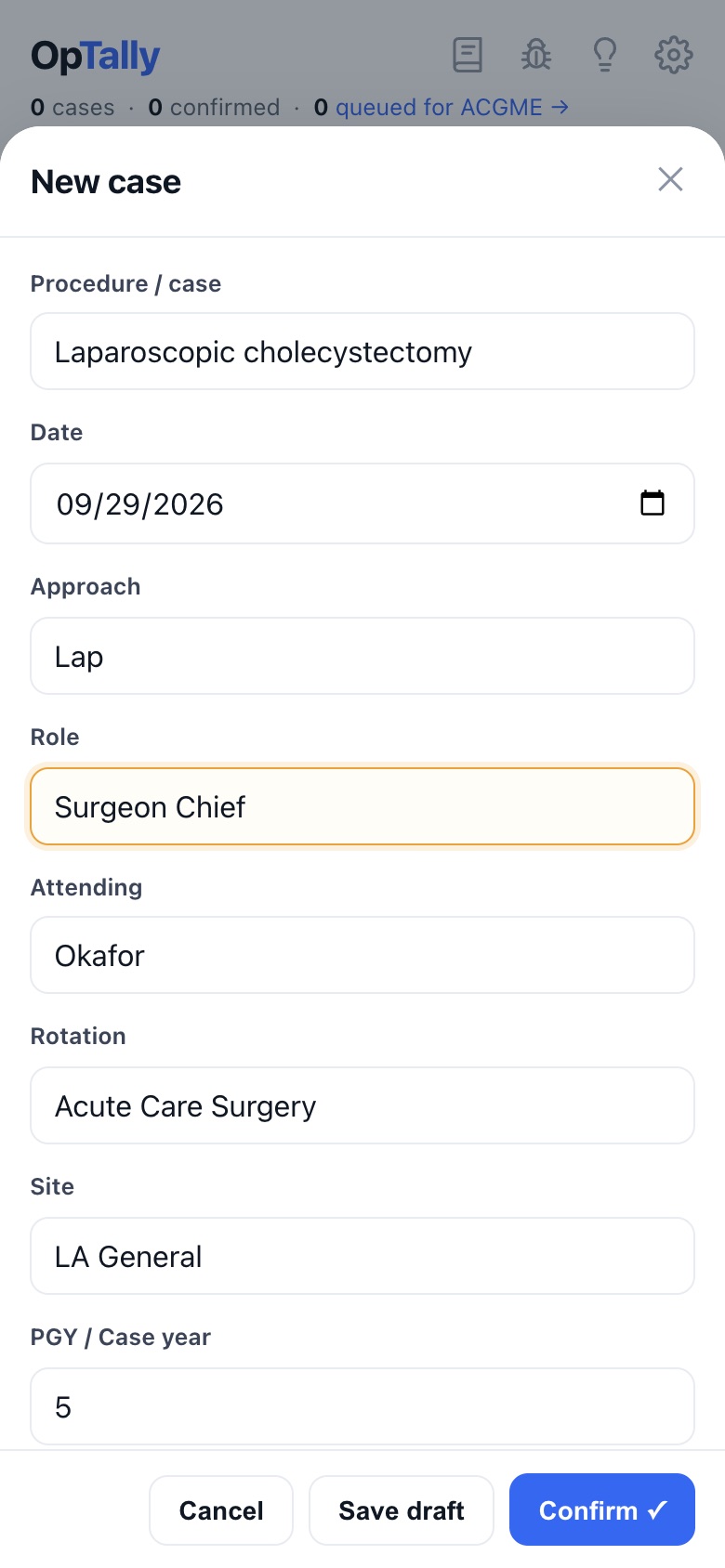
Every field is filled from what you said: operation, CPT code, attending, role, approach, and your notes. Amber fields are ones the parse was not sure about. Glance, fix anything wrong, tap Confirm.
Anything you did not say stays blank rather than guessed. Rotation and site come from your defaults.
3Done
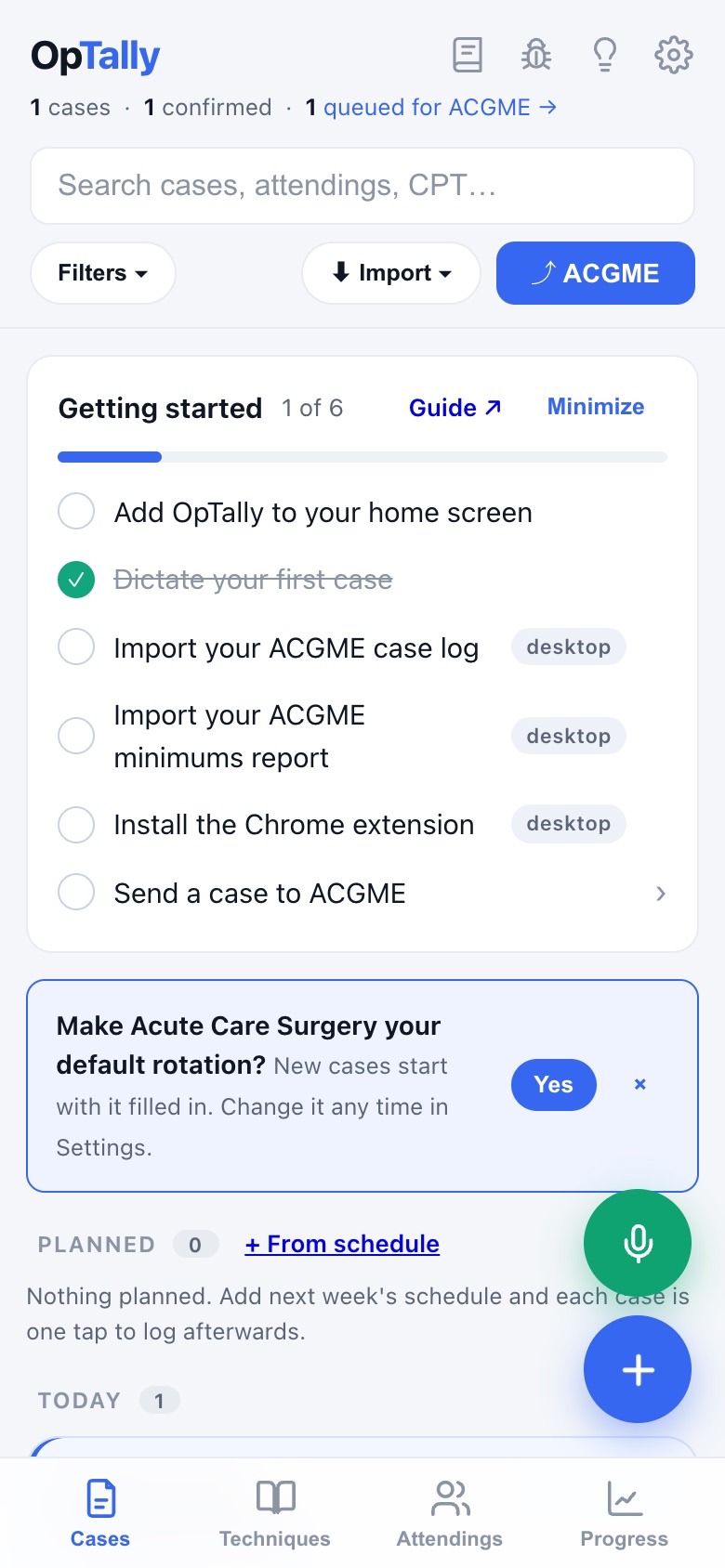
The case appears at the top of the list, confirmed and queued for ACGME. Your Progress tab updates on the spot.
Two or more cases in one go: say "next case" between them and each becomes its own review.
4 · Type a case, or edit one phone
Voice is fastest, but the form is always there.
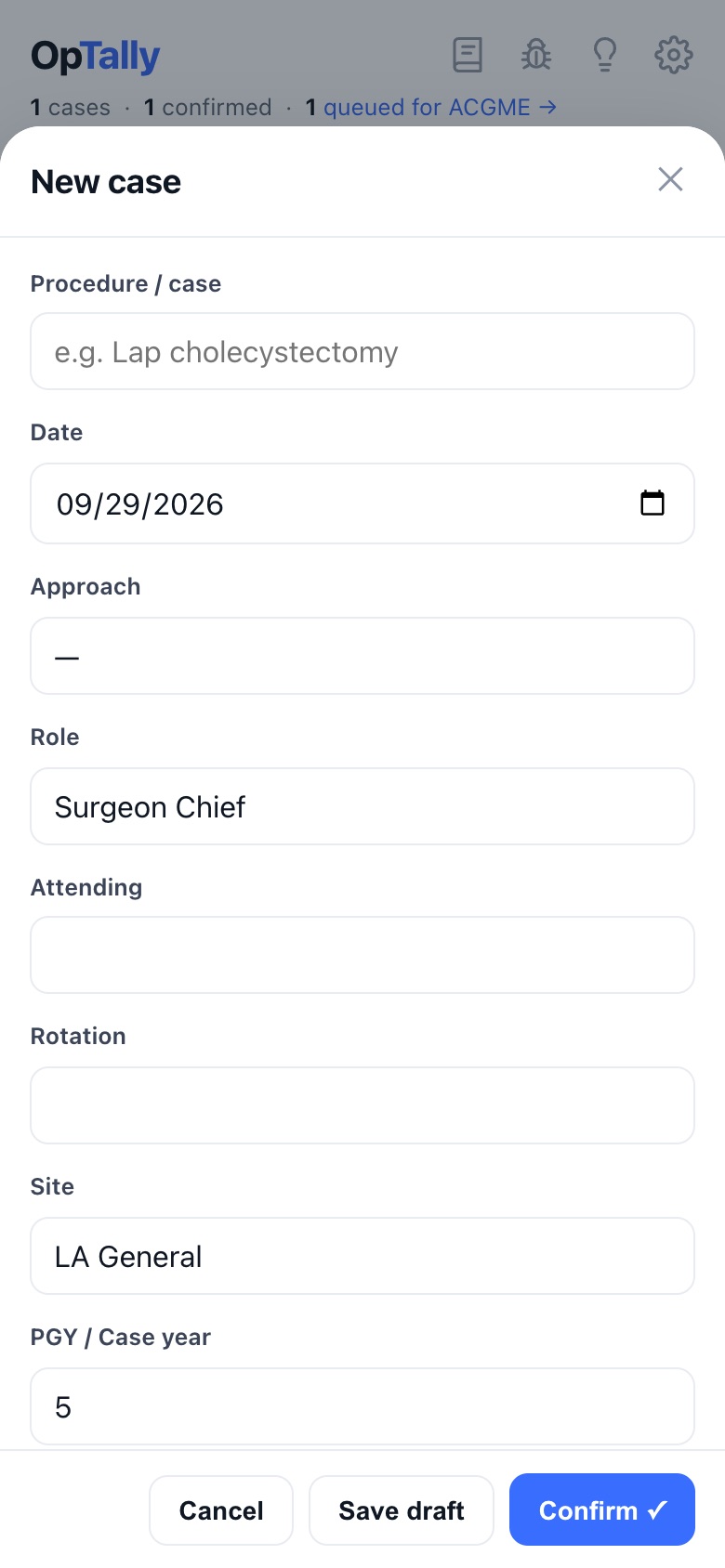
1The blue + opens a blank case
Type the operation and the CPT box searches as you type: a code, a keyword, or shorthand like "lap chole" or "chest tube". Role, rotation and site start from your defaults.
Save draft keeps it without confirming, for a case you want to finish later. Confirm queues it for ACGME.
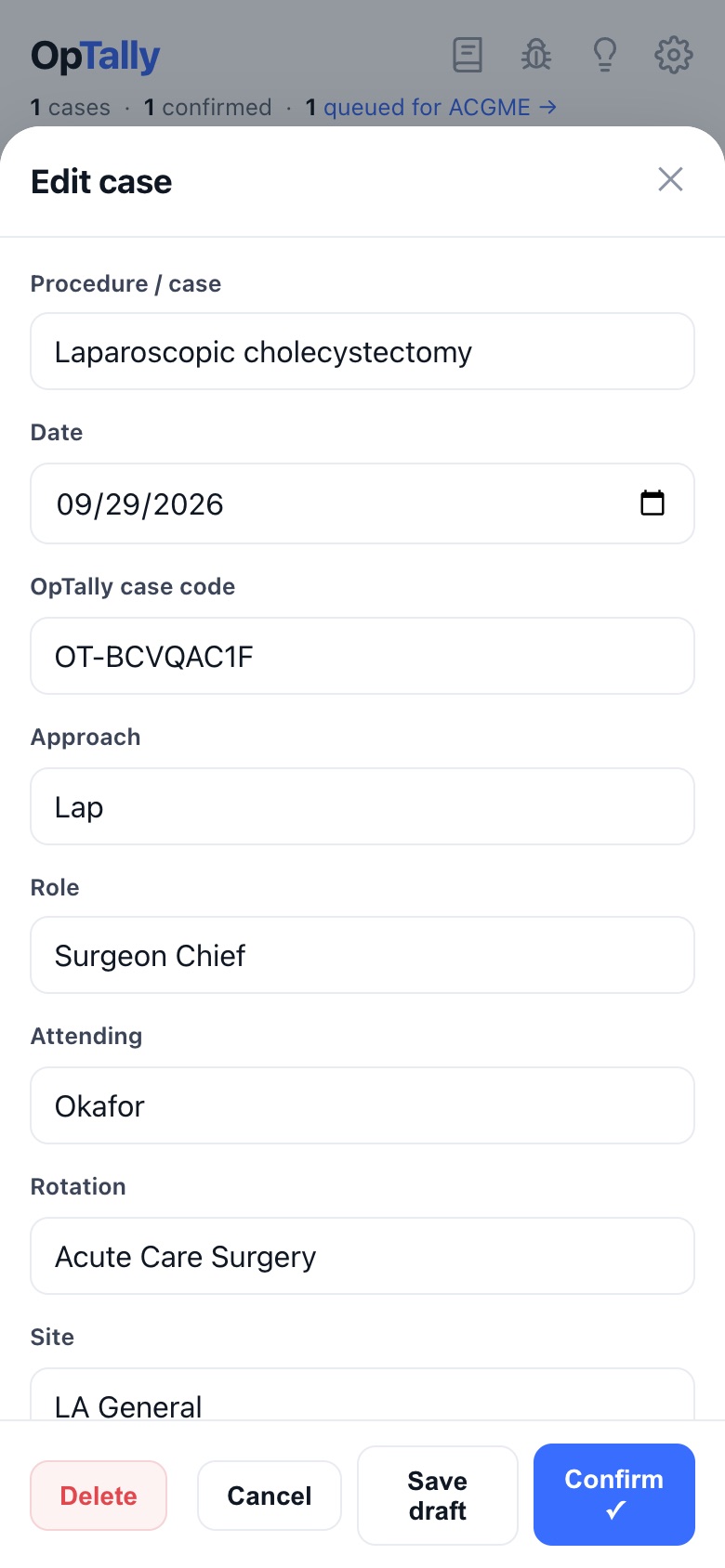
2Tap any case to edit it
Same form, filled in. Change anything and confirm again. Delete moves it to Recently deleted, where it can be restored for 60 days.
Cases that came from your ACGME import are marked as already submitted and never sent again.
5 · Attending preferences phone
Say how the attending likes it done, and OpTally keeps it with that attending, ready for next time.
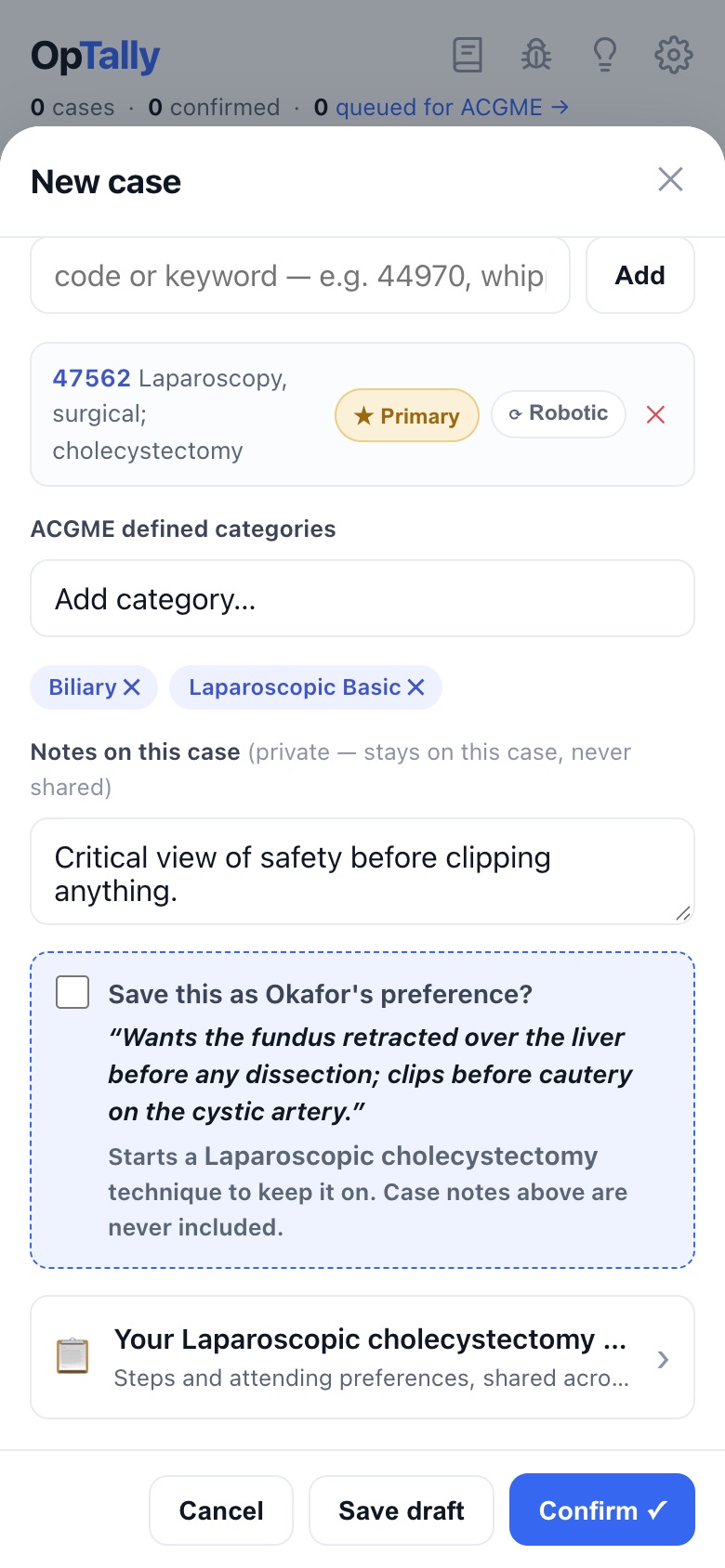
1Mention it in the dictation
"Dr Okafor wants the fundus retracted over the liver before any dissection." When the parse spots a preference, the review offers to save it. Tick the box and confirm.
Your private case notes are never part of a preference. Only the part about how the attending operates.
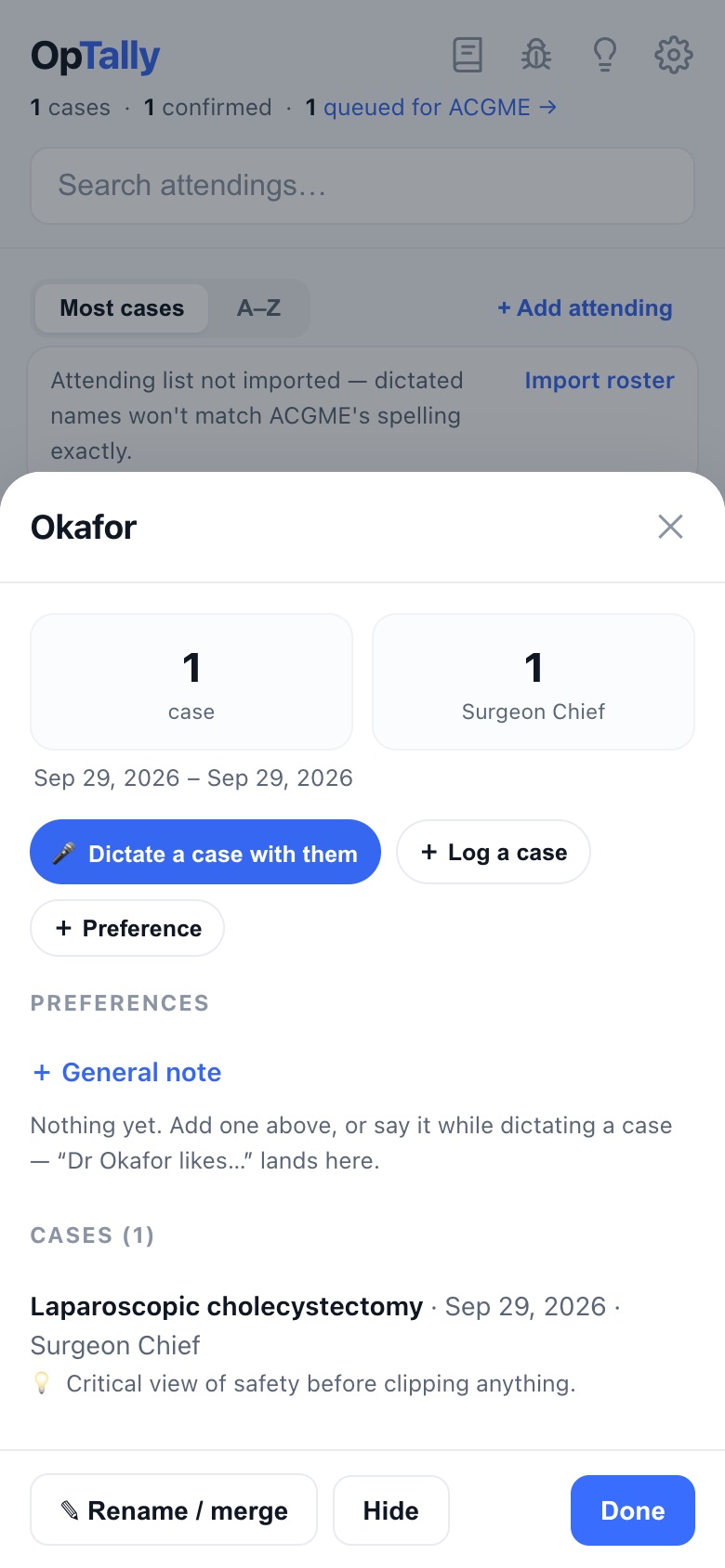
2Find it on the Attendings tab
Every attending you have operated with, with case counts and what you do together most. Tap one to see their preferences, add a note by hand, or merge two spellings of the same name.
6 · Techniques phone
Your own operative playbook, one page per operation, organised by steps. Attending preferences attach to the matching technique.
1The Techniques tab
Grouped by system. A few sample techniques are there to show the shape and disappear once you add your own. Tap one to read it, tap the pencil to edit.
Already keep techniques in Notes or a doc? Import at the top of the tab takes pasted text or a file.
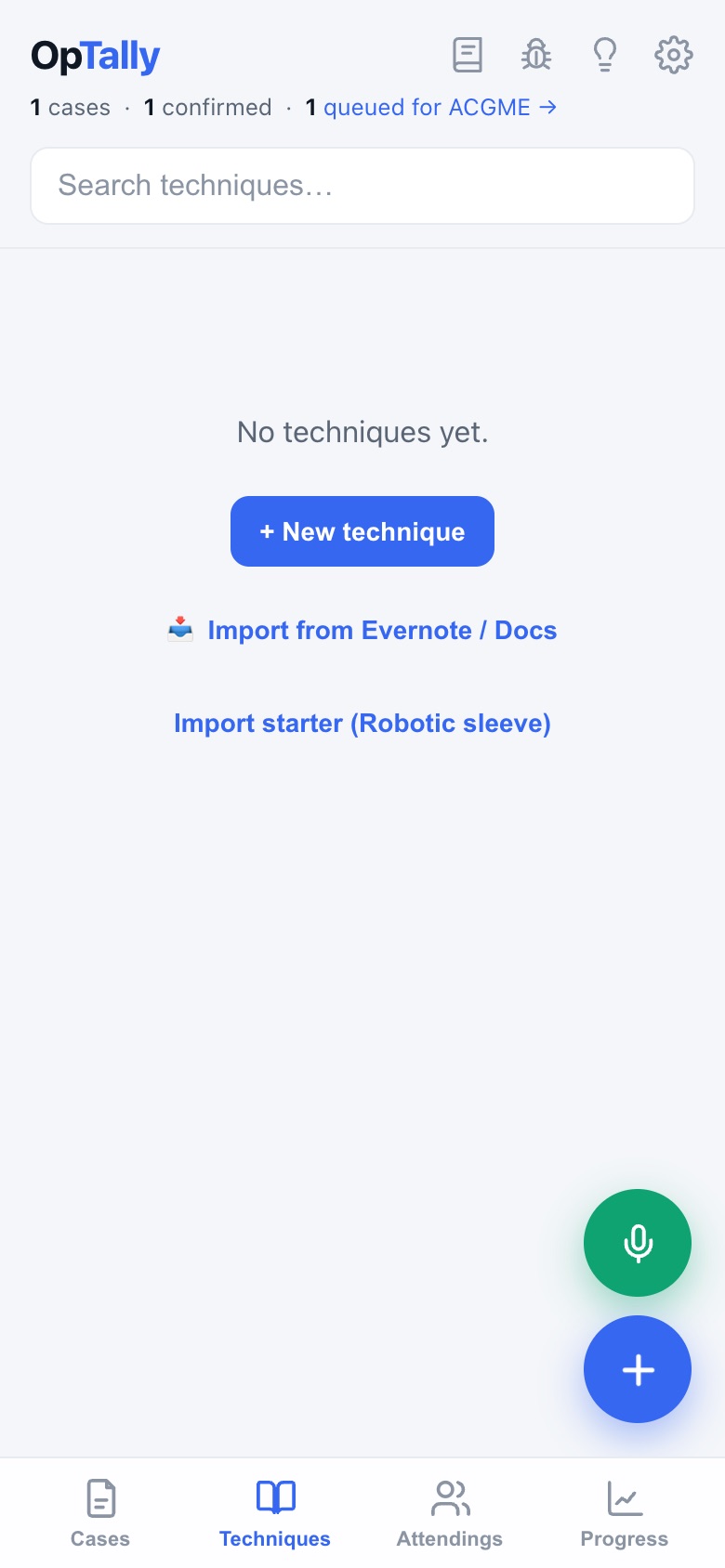
2Dictate a technique
On the Techniques tab the mic captures a technique instead of a case. Talk through the operation in order. Say the attending's name and their part becomes a preference.
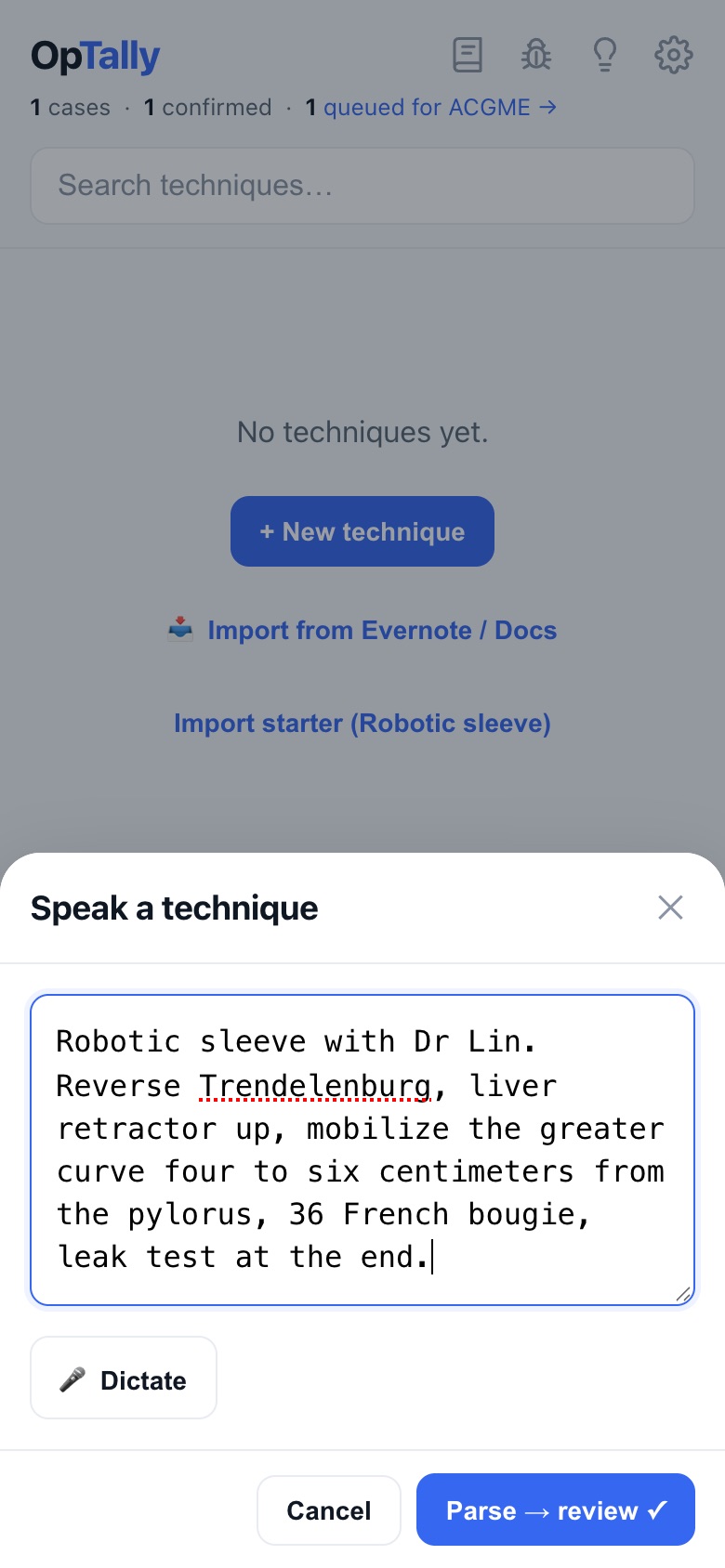
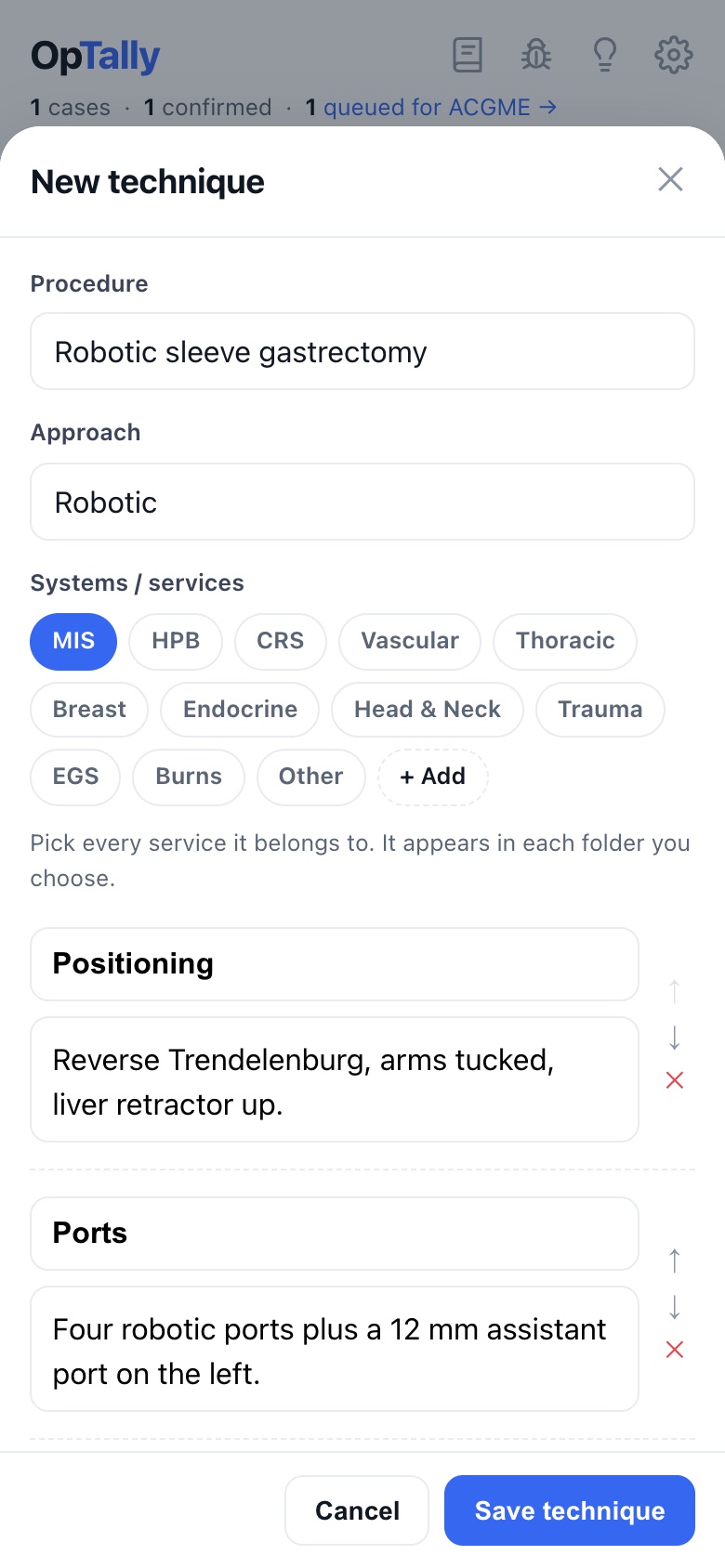
3What it becomes
The dictation is split into sections: positioning, ports, key steps, closure, and so on. Each one is editable, and you can add or rename sections. Save, and it sits on the Techniques tab ready to read before the next one.
7 · Import your ACGME history computer
One-time, about three minutes. OpTally learns your attendings, sites and rotations, and your counts catch up with no duplicates. Do this on a computer: the ACGME site does not download files well on a phone. The result syncs to your phone.
1Download the case log from ACGME
- Sign in to ACGME's Download / Reports page ↗.
- Set Case Date From / To to cover all of residency, then Search.
- Click Download. The file lands in your Downloads folder.
On a Mac the download may pop open in Numbers. Just close Numbers. The file is already in Downloads, and that is the one to use, not a copy saved from Numbers.
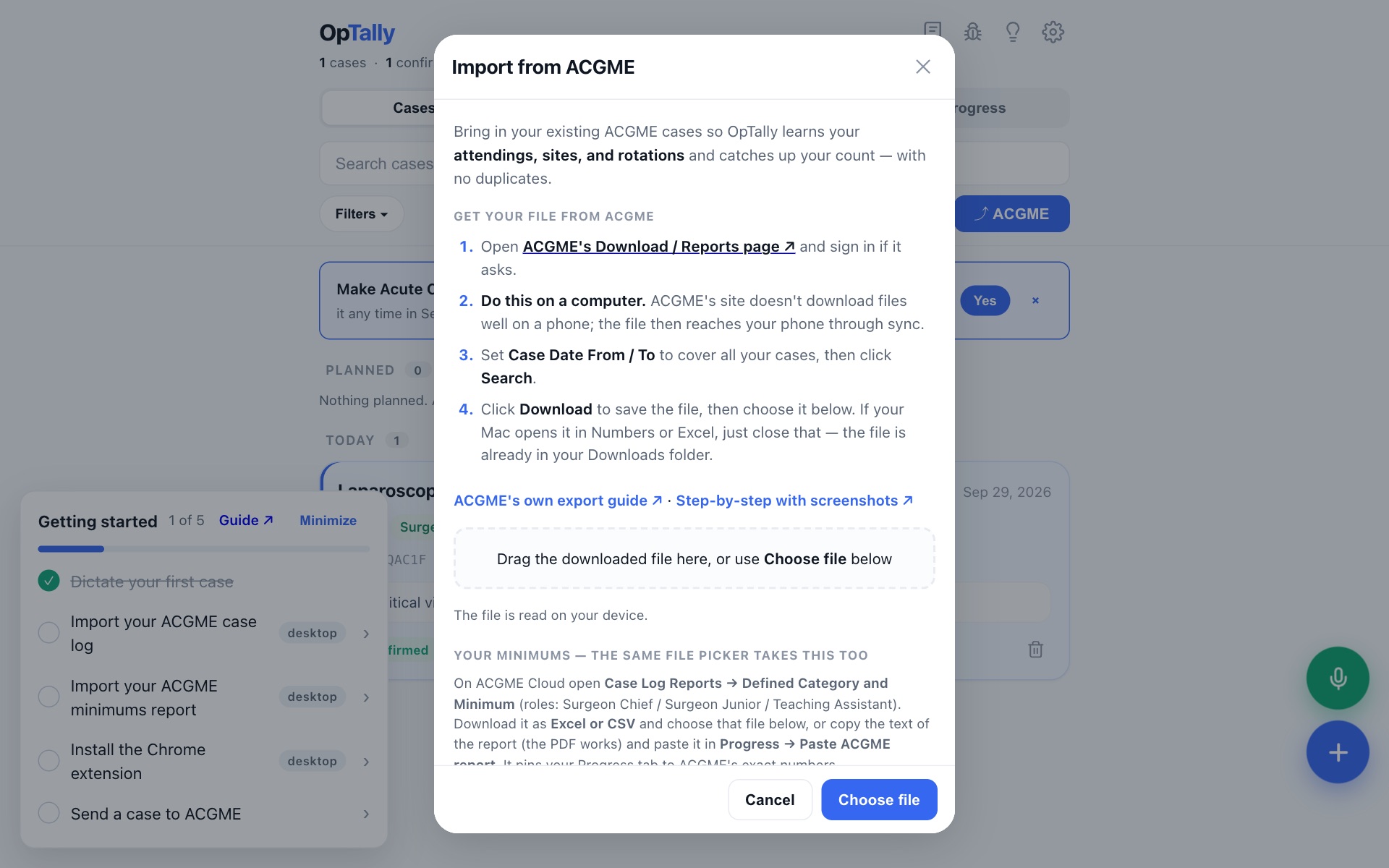
2In OpTally, click Import → ACGME case log
Drag the downloaded file onto the window, or click Choose file. The file is read on your computer.
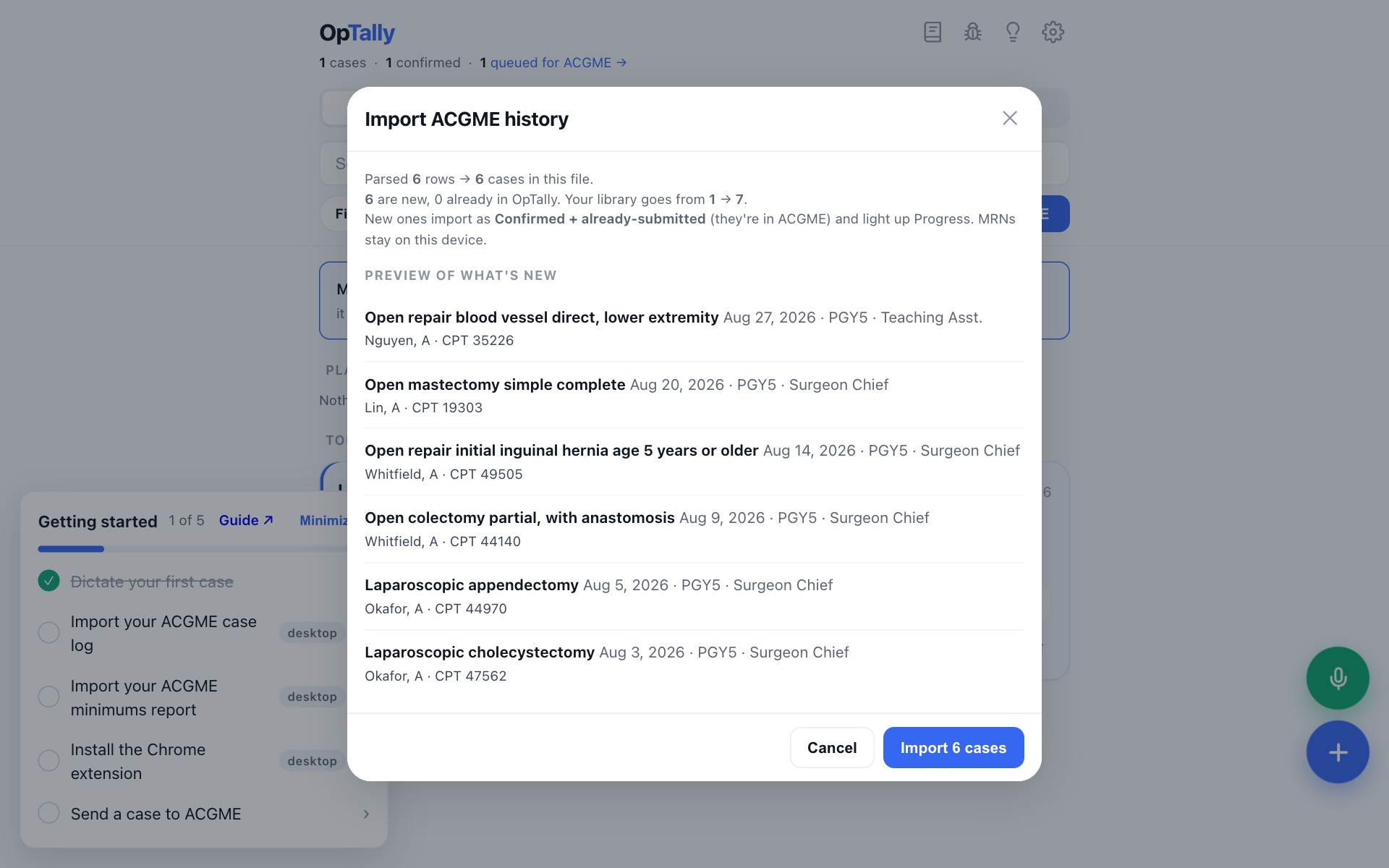
3Review and confirm
OpTally shows what it found: how many cases, which are new, and any that match cases you already logged here. Click Import.
Imported cases carry the ACGME categories from the file, so your Progress tab matches ACGME's numbers.
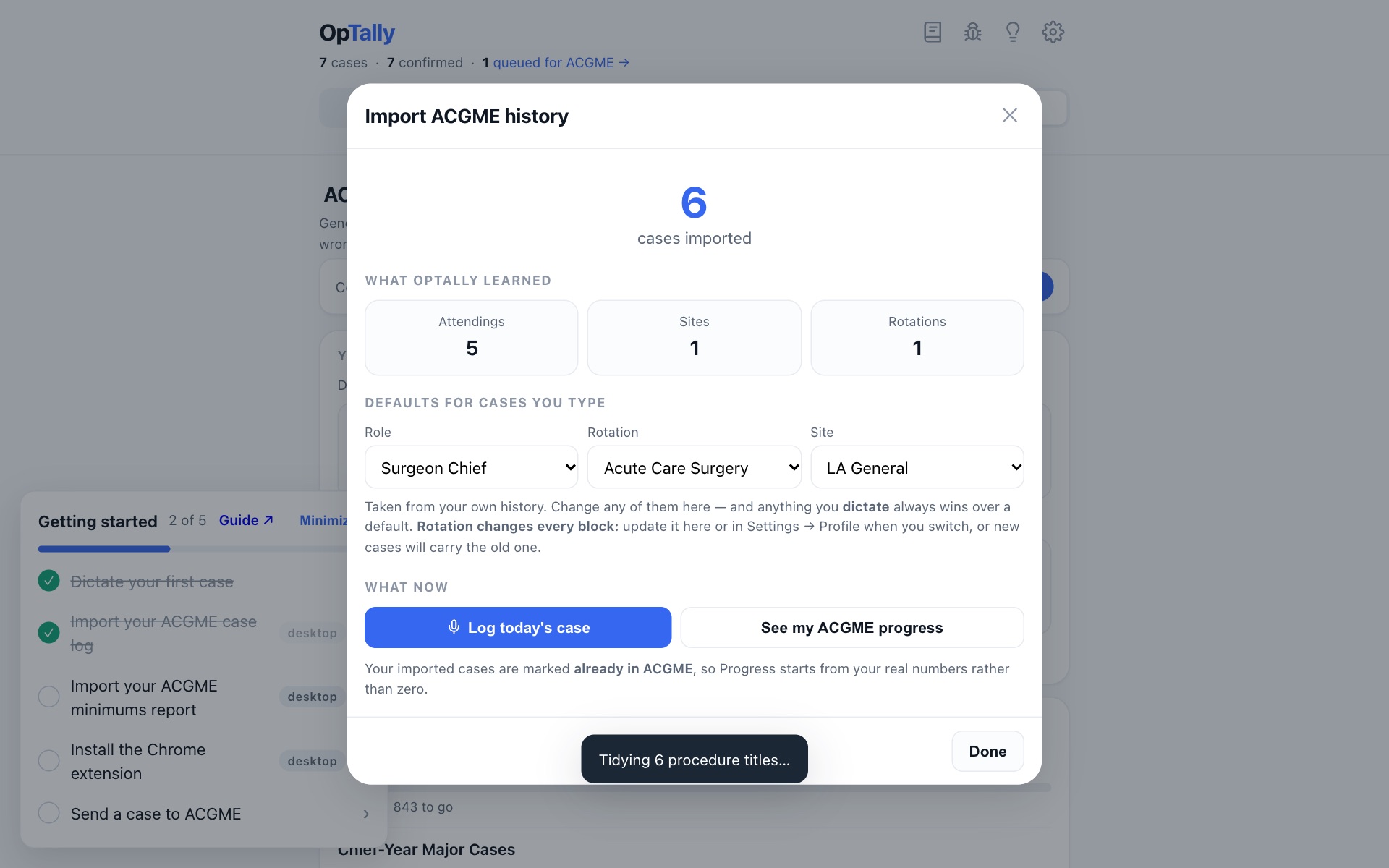
4Done
Your attendings, sites and rotations are now known, so dictation matches them by name. Re-importing later is safe: duplicates are skipped.
8 · Your minimums computer
Pins your Progress tab to ACGME's exact category counts, so "how far to 850" is the real number.
1Get the report from ACGME
- In ACGME Cloud open Case Log Reports → Defined Category and Minimum.
- Roles: Surgeon Chief, Surgeon Junior, Teaching Assistant. Not "All", which counts First Assistant cases.
- Download it as Excel or CSV. Or open it as a PDF and copy the whole text.
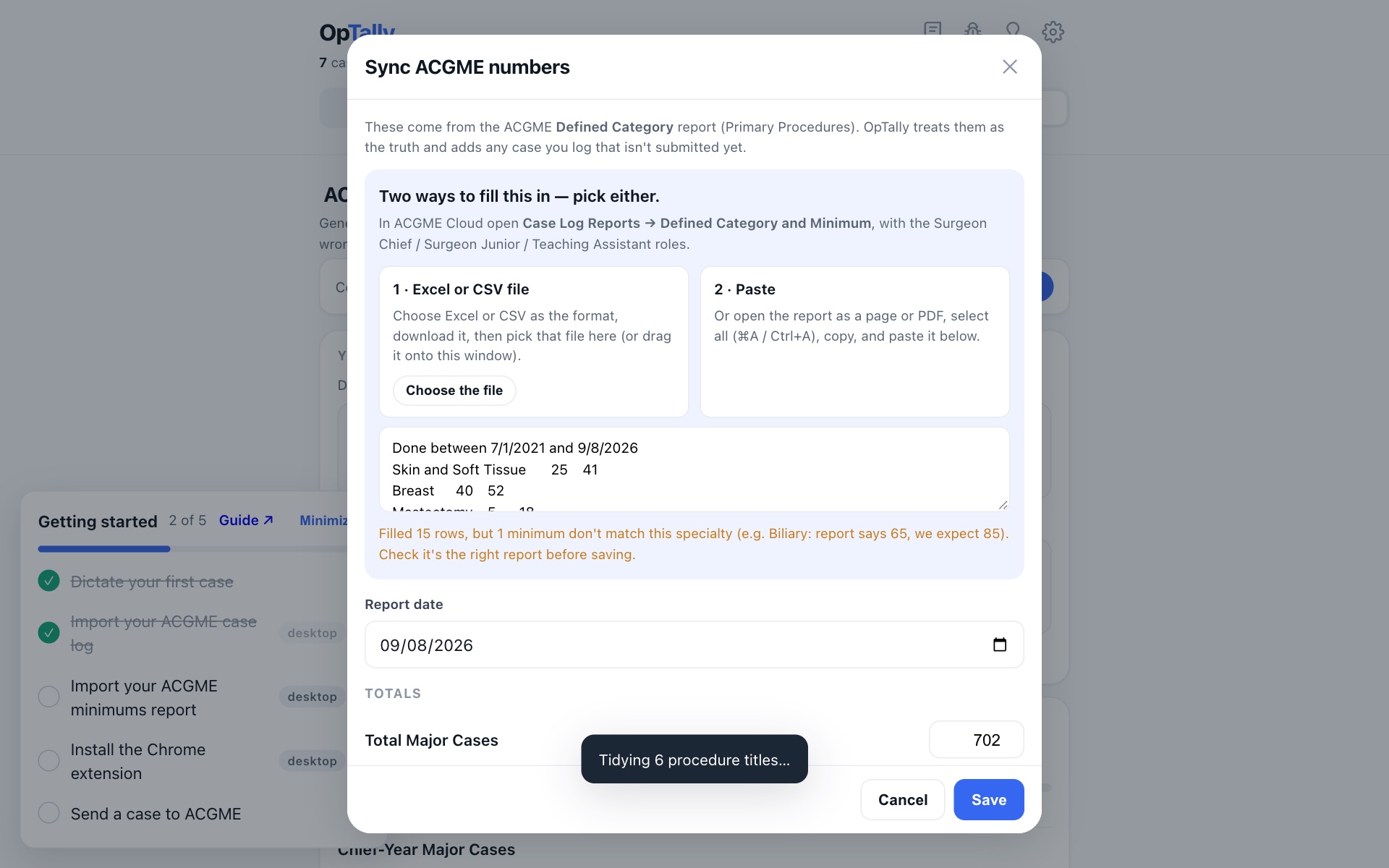
2In OpTally: Progress → Edit
Choose the downloaded file, drag it onto the window, or paste the copied text. Every row fills in. Check the date, click Save.
From then on the Progress tab reads "Matches your ACGME report of…" and counts forward from there. Redo this whenever you want to re-sync with ACGME.
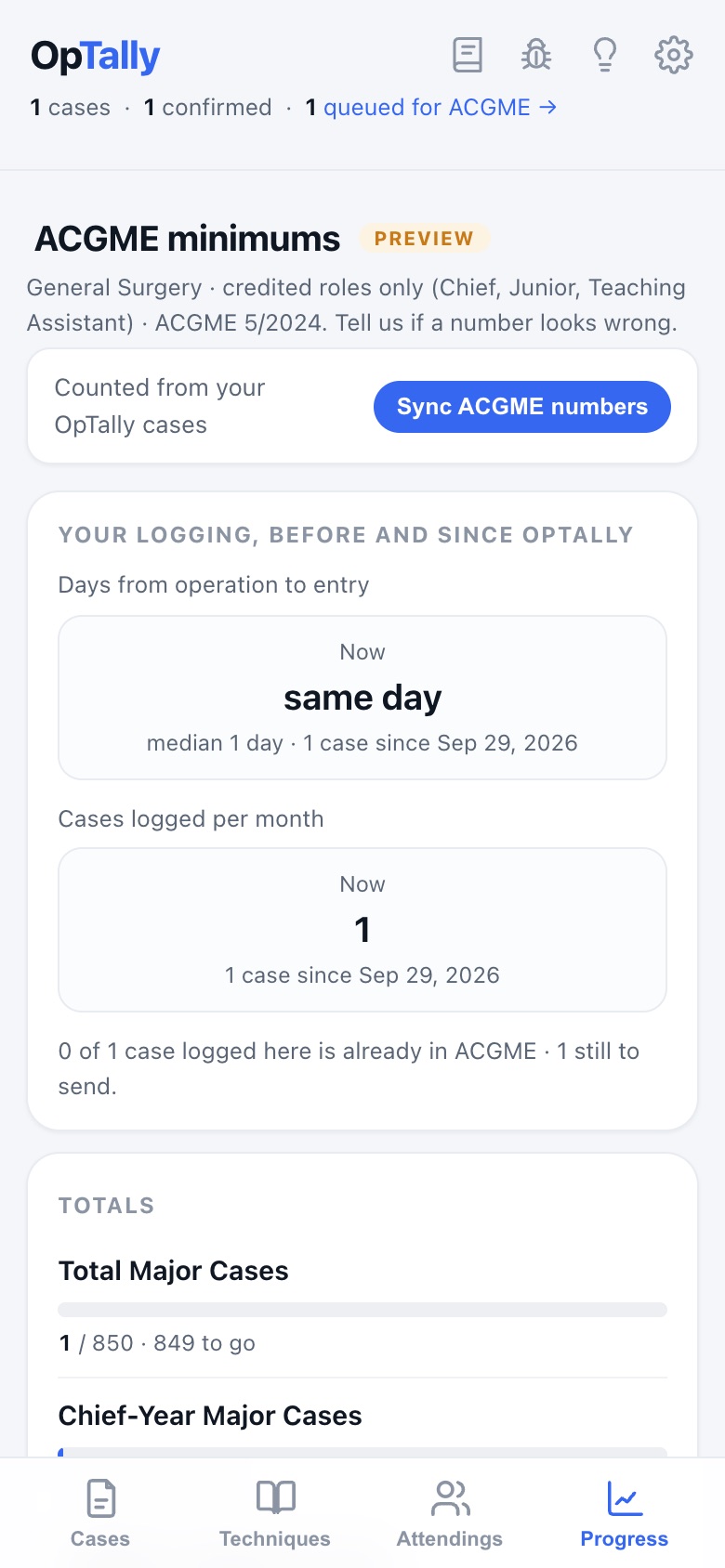
3Progress on your phone
Every category with its minimum, what you have, and what is left, plus the pace you need to finish on time.
9 · The ACGME autofill extension computer
The extension fills ACGME's case-entry form from your queue, so you never retype a case. On a computer it is the Chrome extension (Chrome or Edge). In the iPhone app it is built in as a Safari extension: turn it on once under Settings → Apps → Safari → Extensions, and allow it on optally.io and apps.acgme.org.
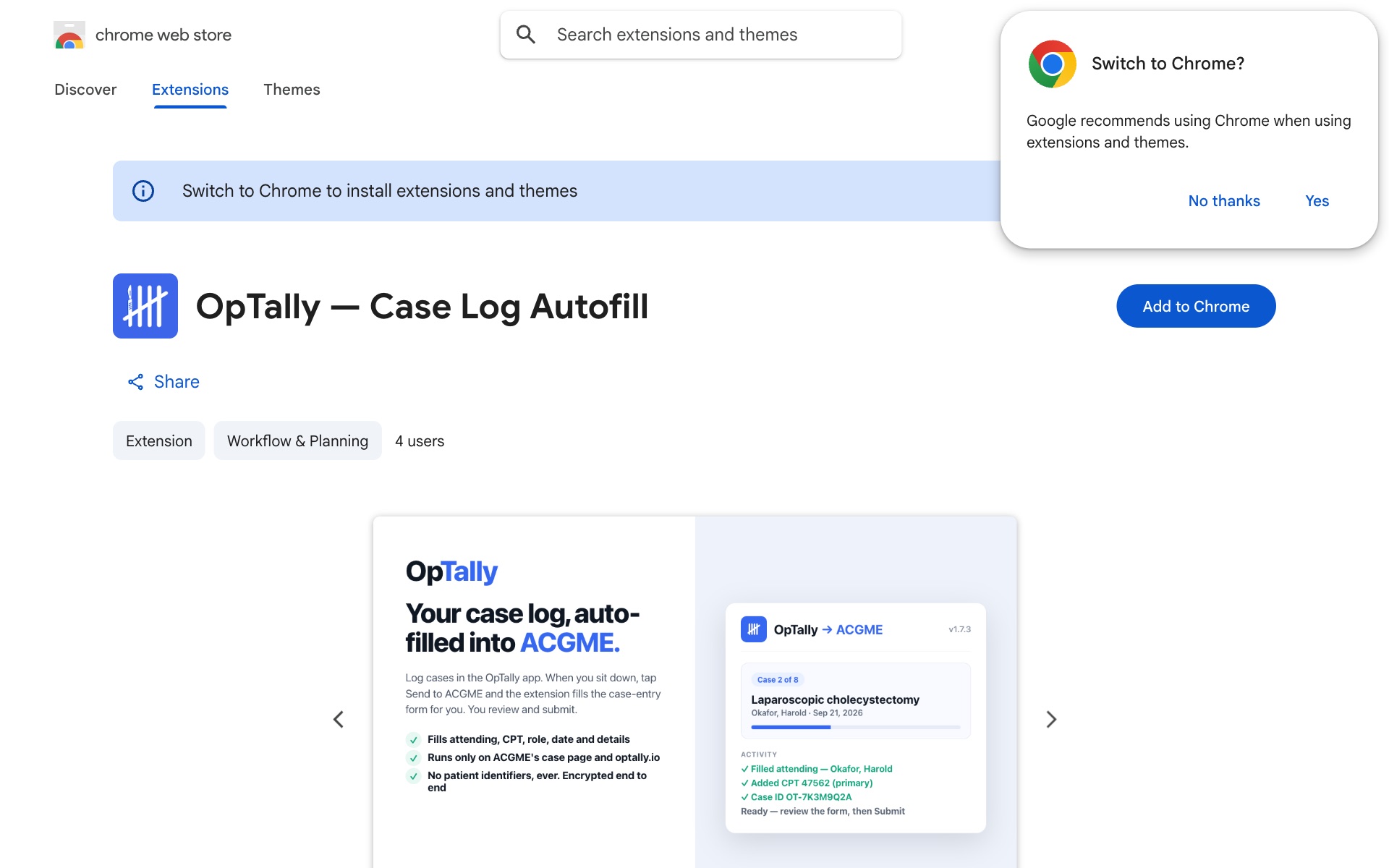
1Open the store page
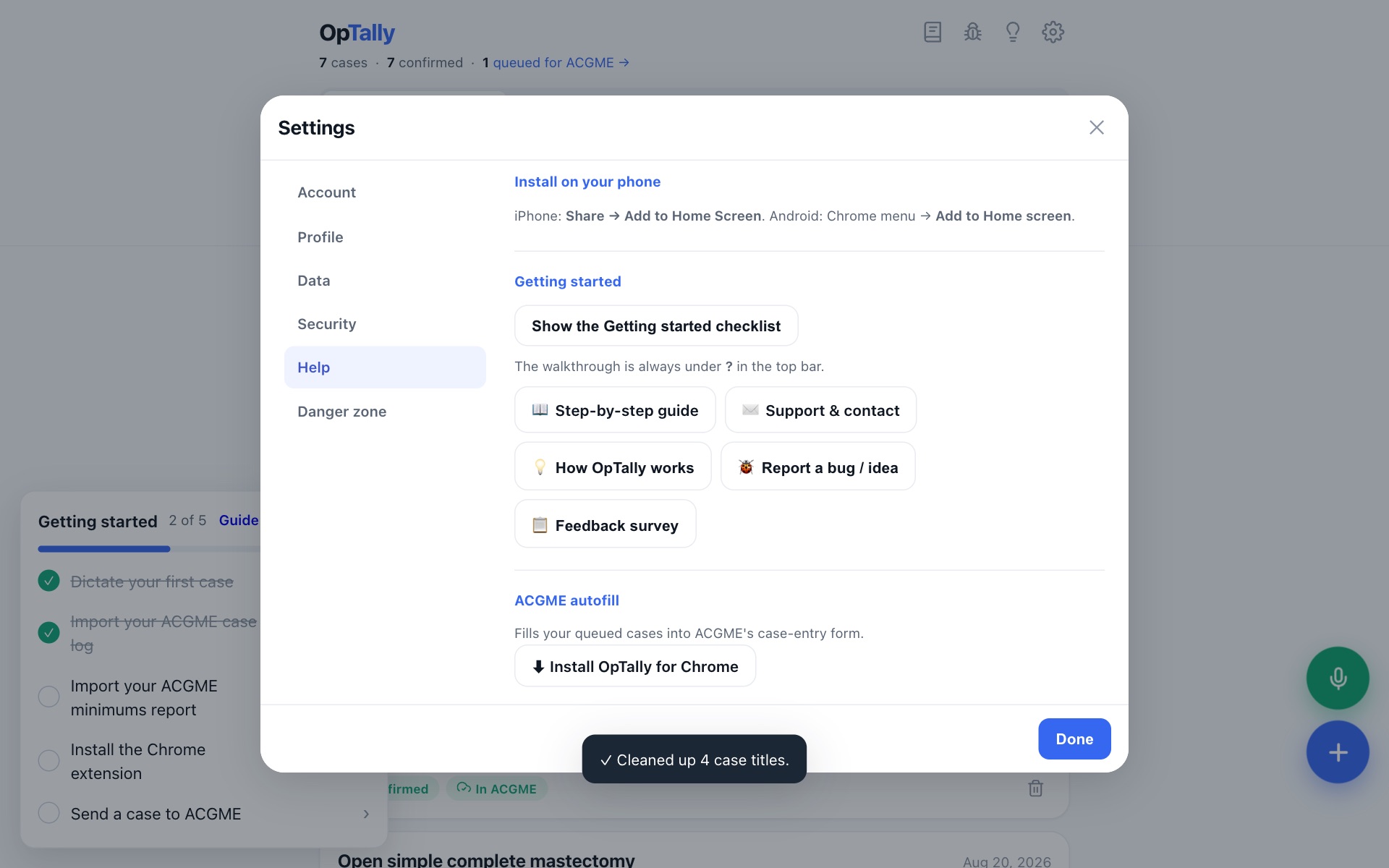
In OpTally go to Settings → Help → Chrome extension → Install, or open the link directly:
OpTally Case Log Autofill on the Chrome Web Store ↗
Click Add to Chrome, then Add extension.
2OpTally notices it
Reload optally.io once. Settings → Help shows the extension as installed, and the checklist ticks itself.
The extension only ever runs on ACGME's site and on optally.io. It reads nothing else.
10 · Send cases to ACGME computer
Confirmed cases wait in a queue. When you sit down at a computer, they go in as a batch.
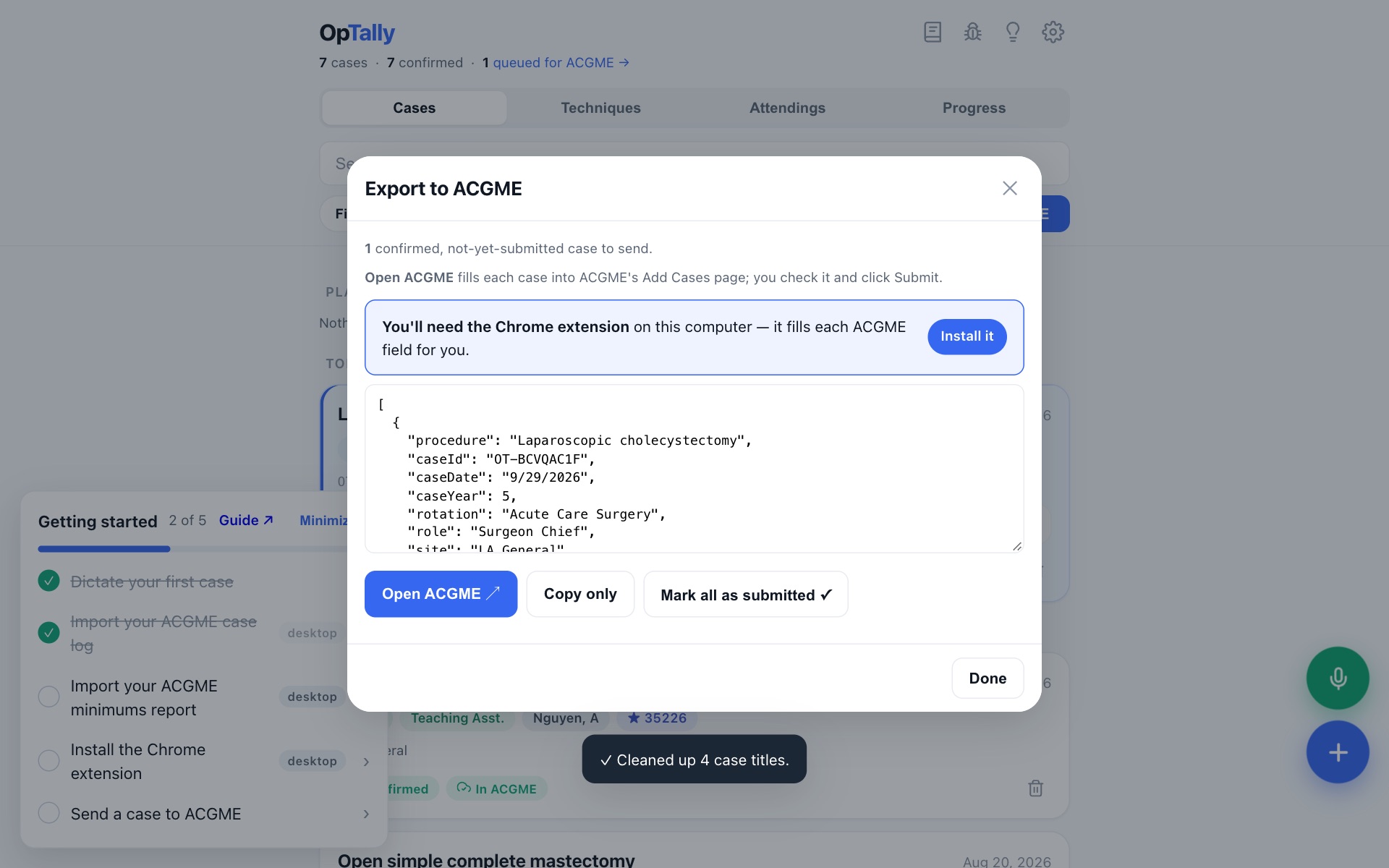
1Click the blue ACGME button
It shows how many cases are queued. Click Open ACGME on a computer, or Open in Safari in the iPhone app. ACGME's case entry opens with your queue.
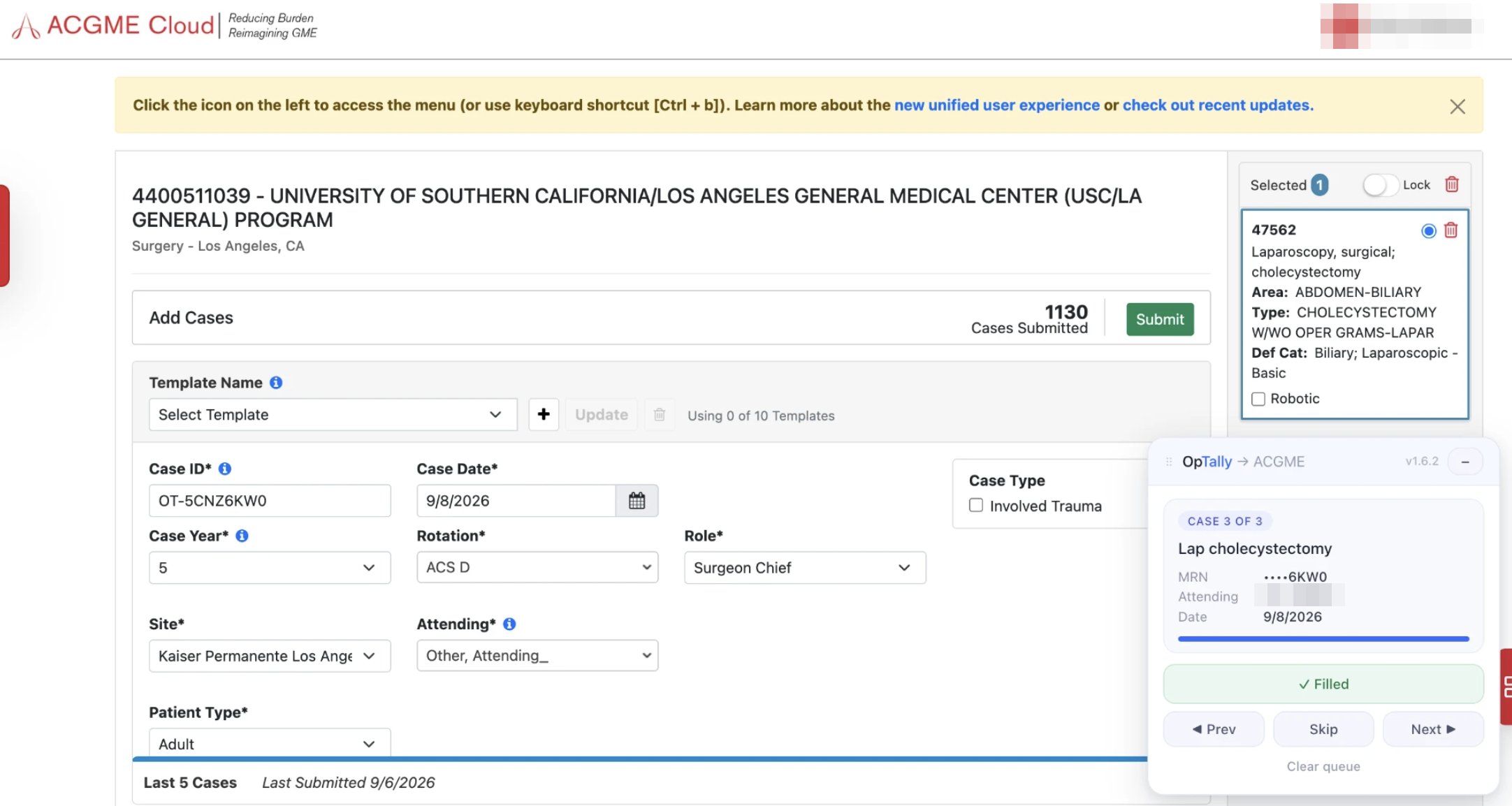
2On ACGME's page, use the OpTally panel
The extension adds a small OpTally panel to ACGME's case-entry page. The first case fills itself: Case ID, date, year, rotation, role, site, attending and CPT codes go in, and the panel reads Filled. Check the page, click ACGME's own Submit, and the next case fills.
Anything ACGME will not accept, an attending it does not know for example, is left for you to pick. Nothing is submitted without you clicking Submit on ACGME's page.
3Mark them submitted
When the last case is in, the panel offers Open OpTally, which marks them submitted for you. Or come back to OpTally and click Mark all as submitted. Either way the cases leave the queue and show a "submitted" badge, which is what keeps them from being sent twice.
In a phone browser the ACGME button points you at the iPhone app or your computer, because nothing can fill the form there.
11 · Settings worth knowing phone
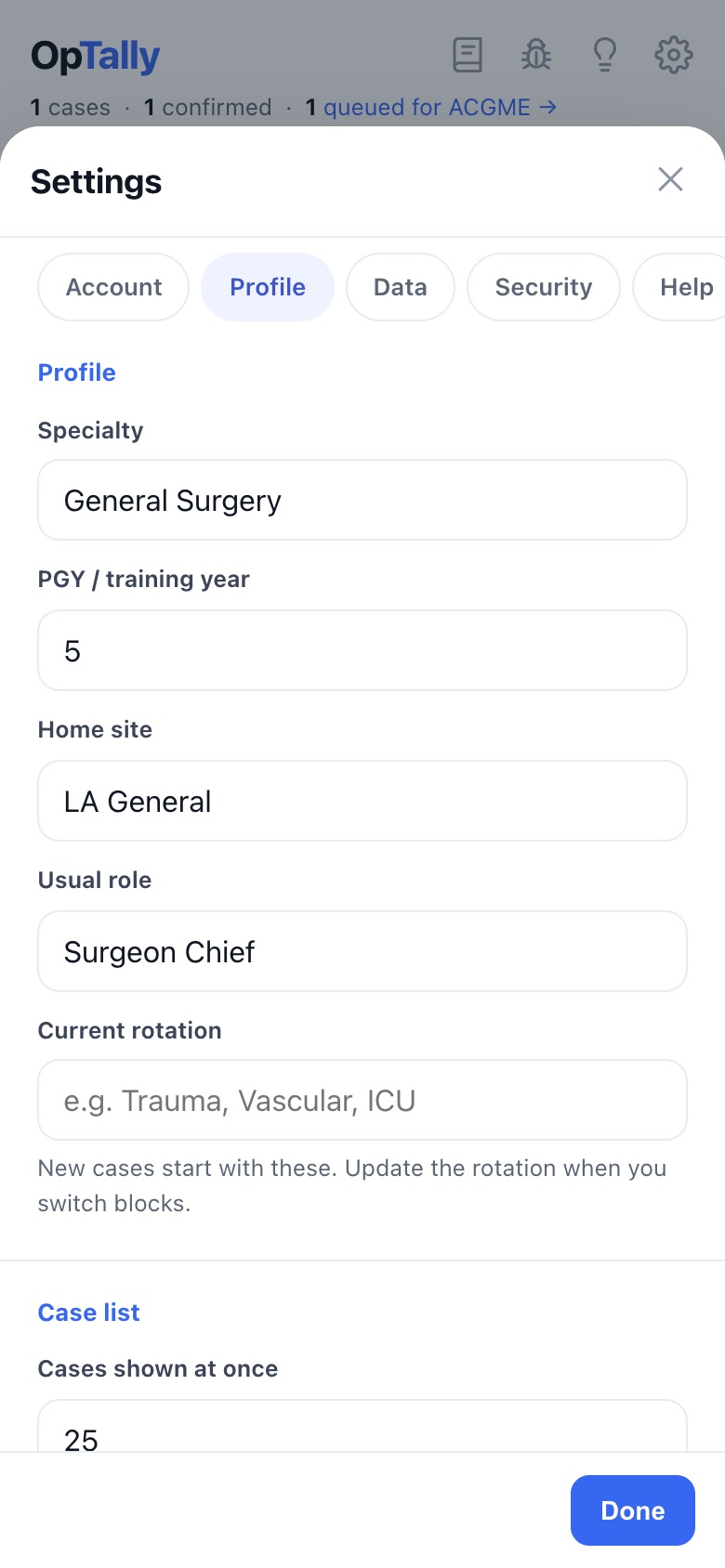
The gear in the top right. Two panes matter.
Profile
- Usual role, current rotation, home site. Filled into every new case. OpTally sets these from your cases, and you can override them.
- No patient identifiers. OpTally does not collect the MRN. Each case gets a random OpTally code, and that code is what goes in ACGME's Case ID field, which is what ACGME asks for.
- PGY and specialty. Bump PGY each July.
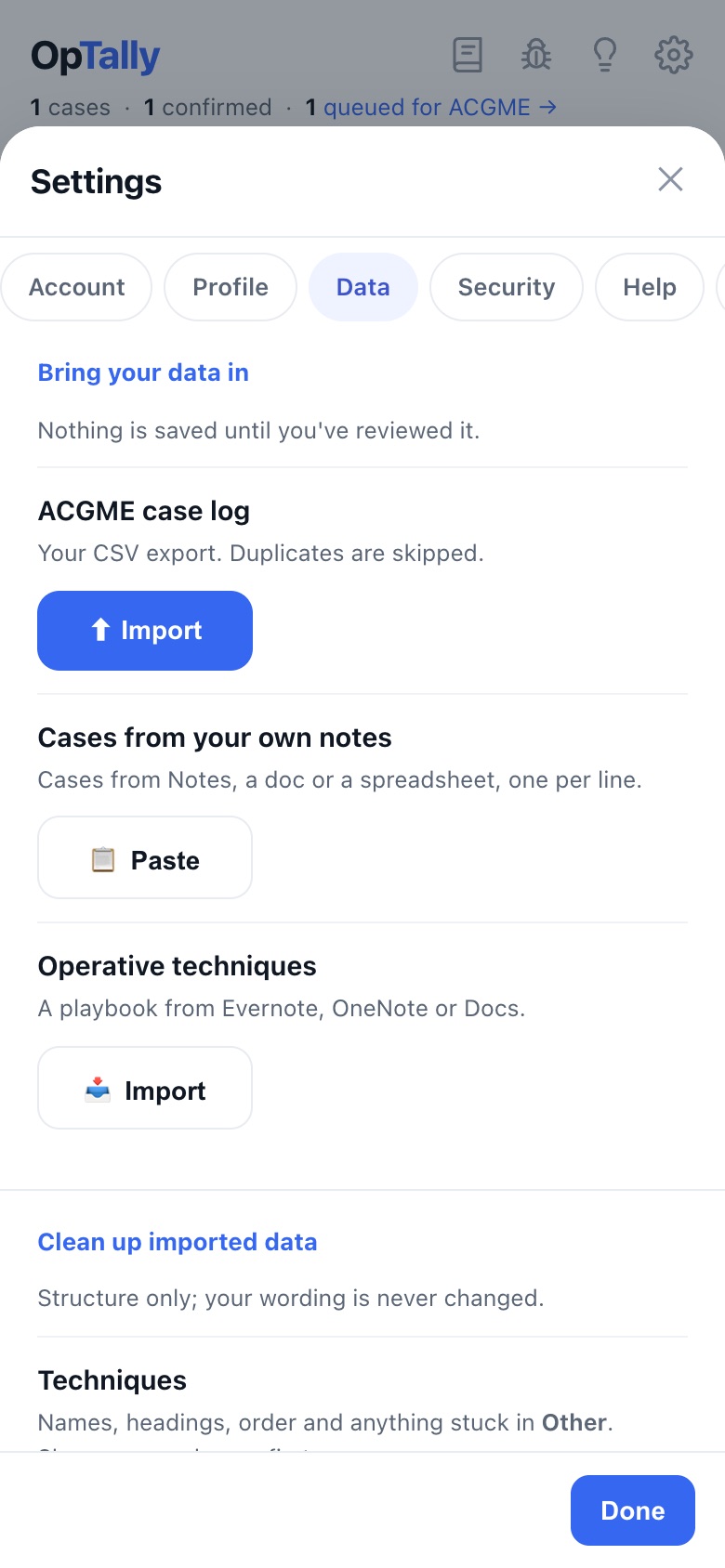
Data
- Download backup saves an encrypted copy of everything. Worth doing once a month.
- Merge duplicates finds a case logged twice, dictated and imported for instance, and keeps one.
- Recently deleted holds deleted cases for 60 days.
12 · Help and bugs phone
- Bug button, the beetle in the top bar. Describe what happened, attach a screenshot, and it goes straight to OpTally support with the app version.
- Lightbulb reopens the walkthrough.
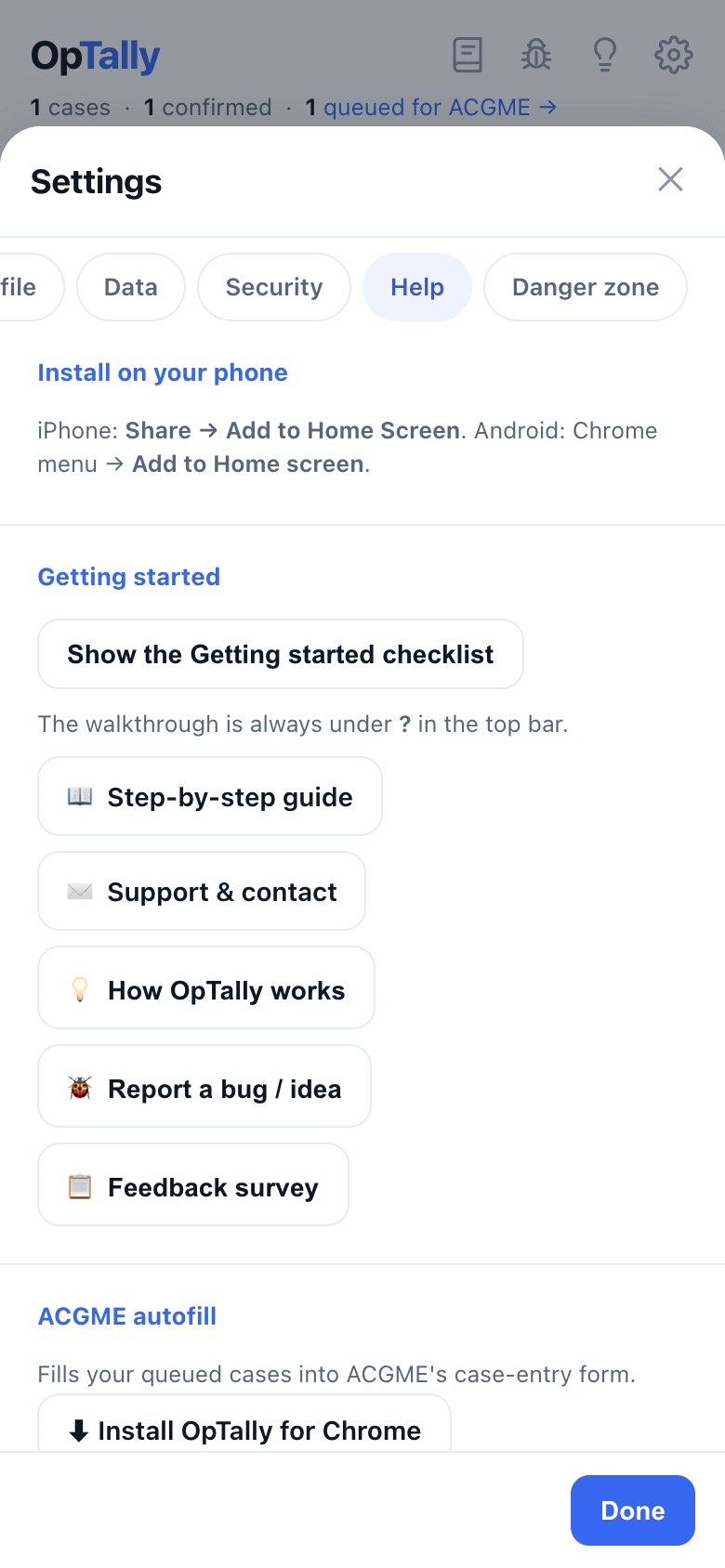
- Settings → Help has this guide, the checklist, and the extension.
Email support@optally.io for anything that blocks you.